Automate Your 'Featured Song of the Week' with Myriad Schedule Pro & Broadcast.Radio Website CMS
Prerequisites:
- Myriad Playout & Automation or Myriad Cloud
- Myriad Schedule Pro (only needed for fully automated Category changes)
- Broadcast.Radio Website CMS
Maintaining a fresh sound requires constant content rotation. Your listeners expect to hear the latest hits, but they also appreciate a curated experience that highlights specific tracks. The "Featured Song of the Week" is a classic radio staple that builds artist familiarity and keeps your output sounding current.
Manually updating your playout logs and your station website every week is a time-consuming task that invites human error. By leveraging the integration between Myriad Playout & Automation and the Broadcast.Radio platform, you can create a completely automated workflow. This ensures your featured track is scheduled correctly and your website stays updated without you lifting a finger on a Monday morning.
Our radio automation software is designed to handle these repetitive tasks so you can focus on creating great content. This guide will walk you through the professional setup required to automate your featured music rotation across your studio and your digital presence.
Step 1: Create a Dedicated Category in Myriad Schedule
The foundation of any organized music library is a robust category system. To manage a featured track effectively, you should avoid cluttering your primary "A List" or "Recurrent" categories. Instead, create a dedicated Song Category and utilise the secondary category attribute on Songs for this purpose.
- In Myriad Playout, open the Settings Menu and select Categories & Attributes.
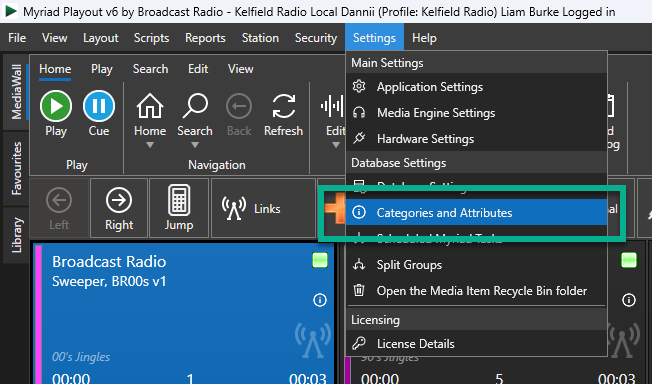
Myriad Cloud customers will find the option in the Myriad Cloud Settings section available from the Dashboard.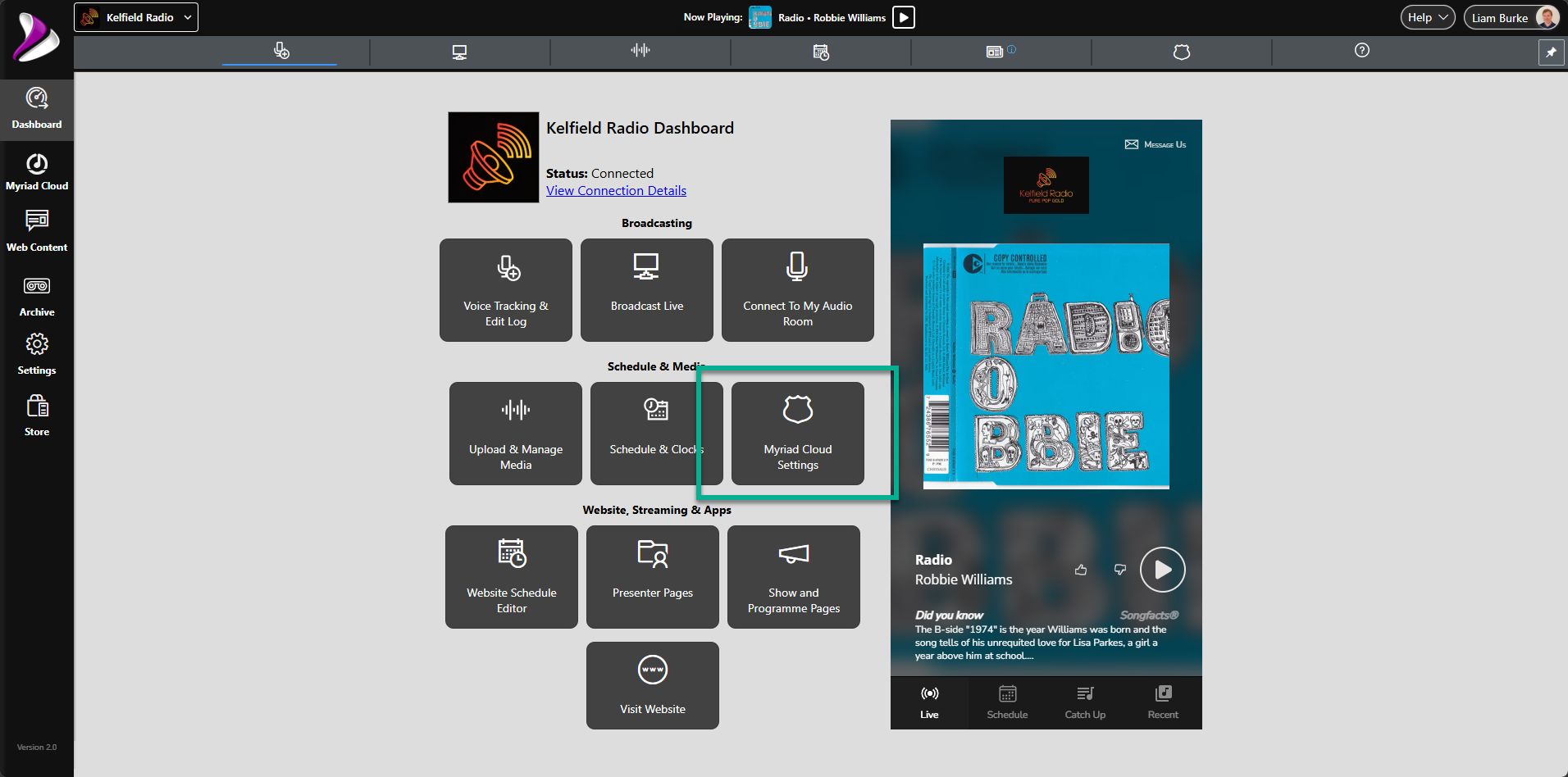
- In Myriad Playout,
make sure the Songs
tab and the Category Names
options are selected, then click on Add Category.
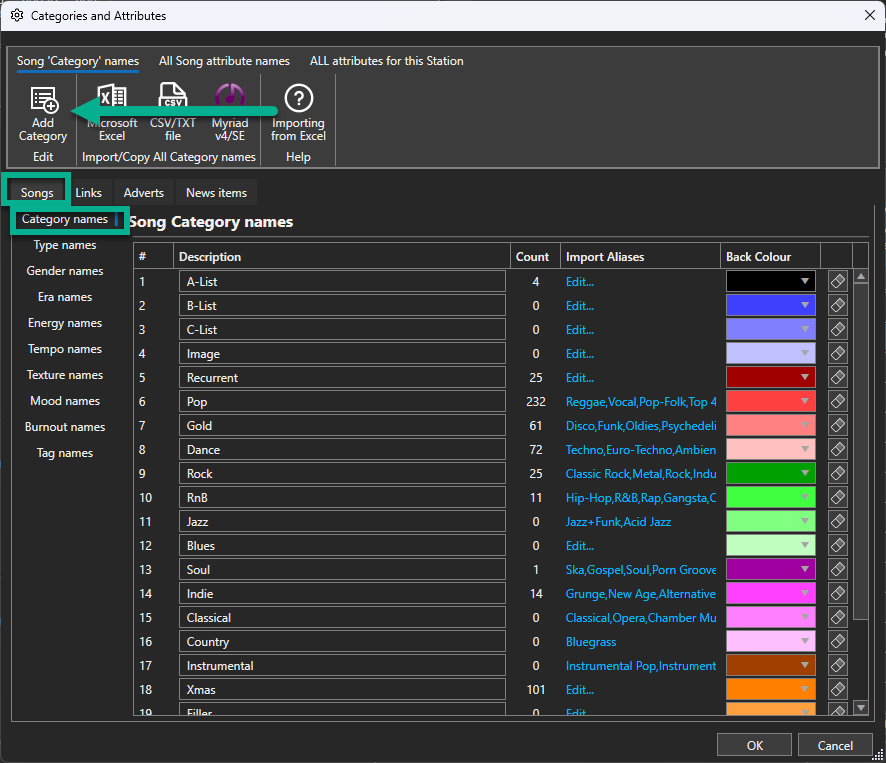
Myriad Cloud users will find the same options in the Category & Attributes section in Myriad Cloud Settings.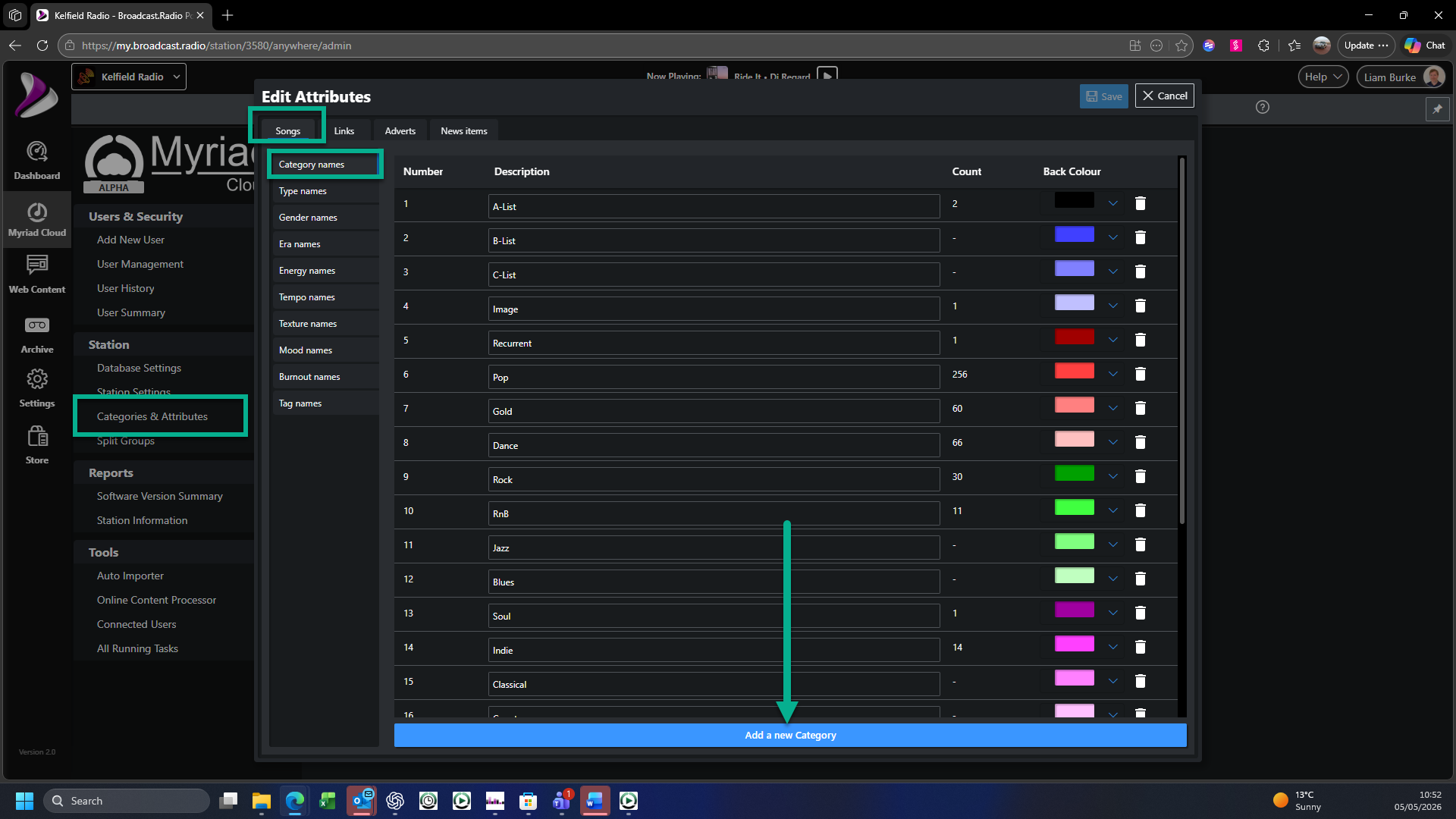
- The new Song Category will be added to the bottom of the list. Type in a suitable name such as Featured Song.
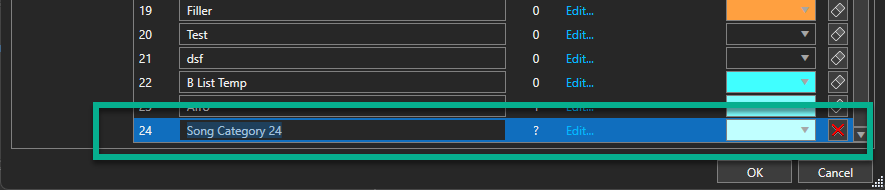
The process is the same in Myriad Cloud.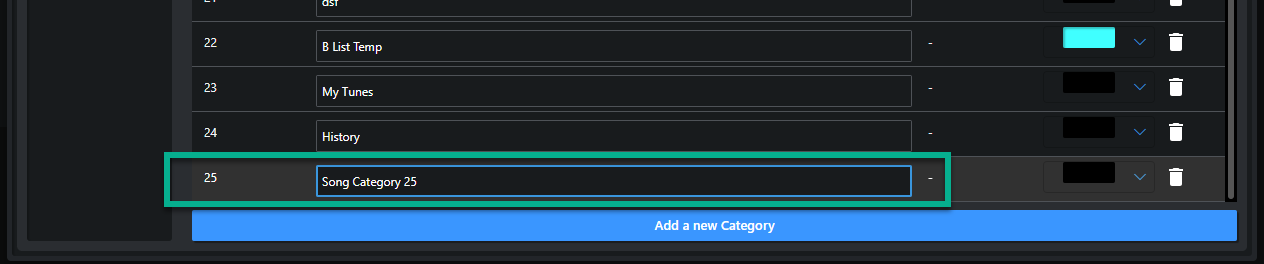
- In Myriad Playout,
click on the OK button
to save the new Featured Song Category.

In Myriad Cloud click on the Save button to save the Featured Song Category.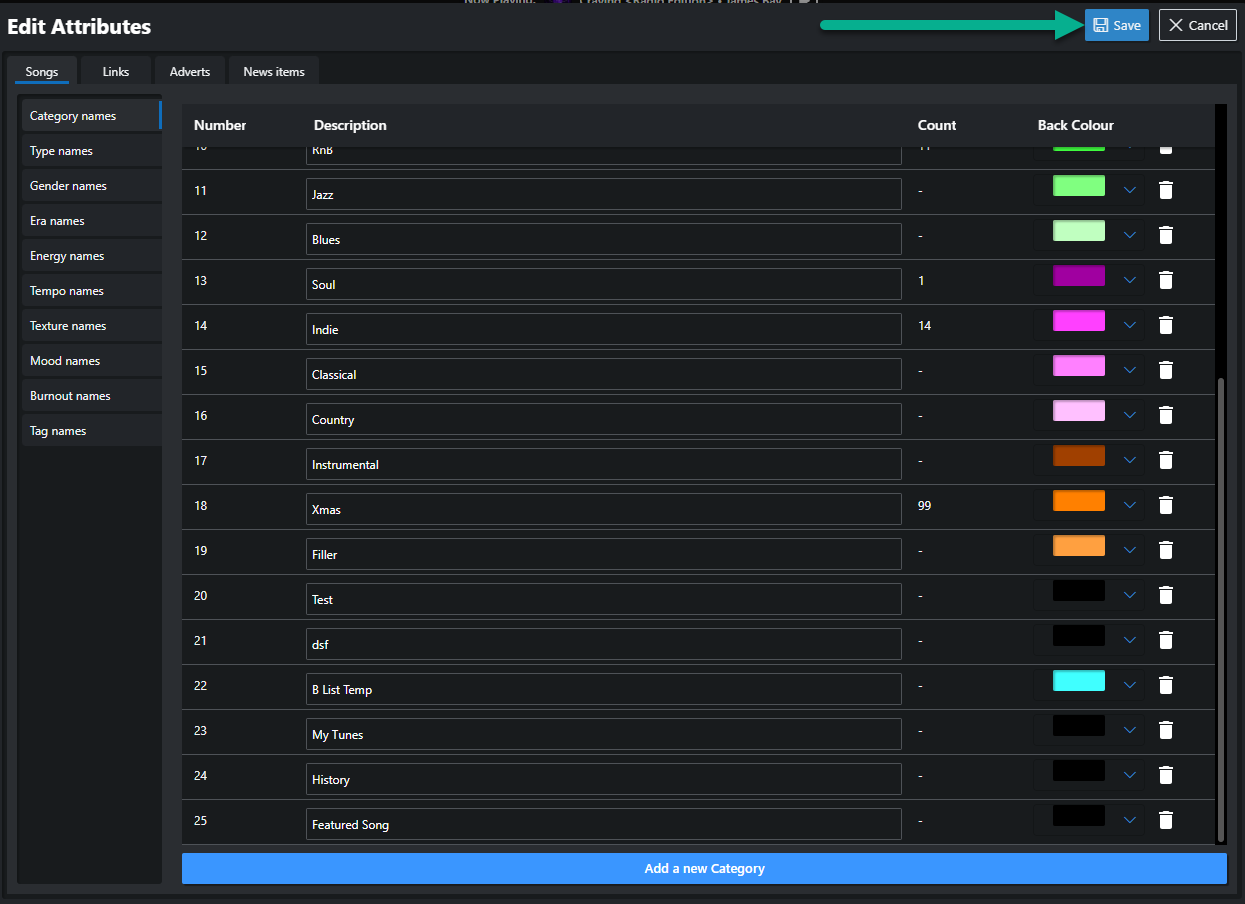
Using a specific category for your featured track allows you schedule 'Featured Songs' at specific points in Clocks and to list Songs in the Category on your website, making it easy to show which track is currently "in the spotlight."
Step 2: Assign and Automate with Future Moves
Once your category is ready, you need to populate it. Myriad Schedule Standard users can select a Song and add the Featured Song Category as a Secondary Category for the duration you want to feature the Song.
This process can be fully automated in Myriad 6 Schedule Pro using the Future Moves tool. This advanced feature allows you to automatically change Song Attributes based on fixed dates or number of times scheduled, so in this we could plan the 'Featured Song' for the full month and not have to manually make changes.
For example :
- 1st of Month > Add the 'Featured Song' Category to the Secondary Category attribute on Song A
- 7th of the Month > Remove Featured Song from the Secondary Category of Song A and add it to the Secondary Category of Song B
- 14th of the Month > Remove Featured Song from the Secondary Category of Song B and add it to the Secondary Category of Song C
- 21th of the Month > Remove Featured Song from the Secondary Category of Song C and add it to the Secondary Category of Song D
- 28th of the Month > Remove Featured Song from the Secondary Category of Song D and add it to the Secondary Category of Song E
Future Moves will automatically change the contents of the Featured Song Category throughout the month.
This "set and forget" mentality is what separates professional radio software from basic media players. You can plan your featured songs for the entire month in one sitting. The system will automatically promote and demote tracks based on your timeline, ensuring your "Featured Song" category always contains exactly one active track.
Manually adding Songs to the Featured Songs Category (Myriad Schedule)
To manually add Songs to the Featured Songs Category, follow these steps:
- Right click on a Song in the Library or Media Wall tabs and select Edit.
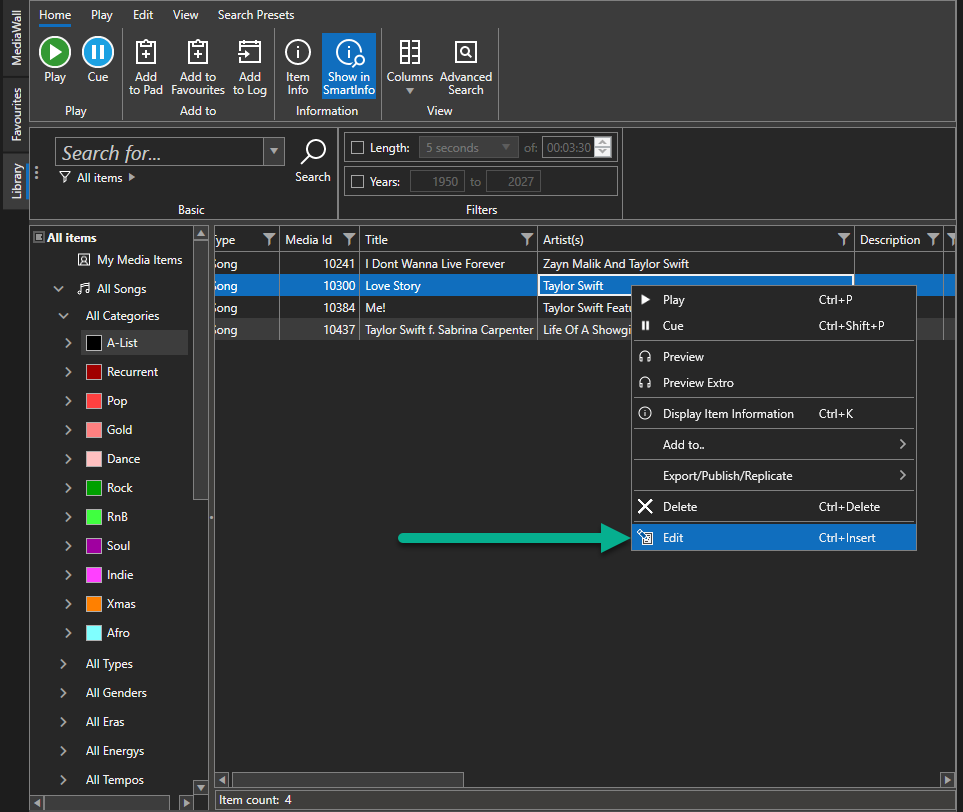
Myriad Playout.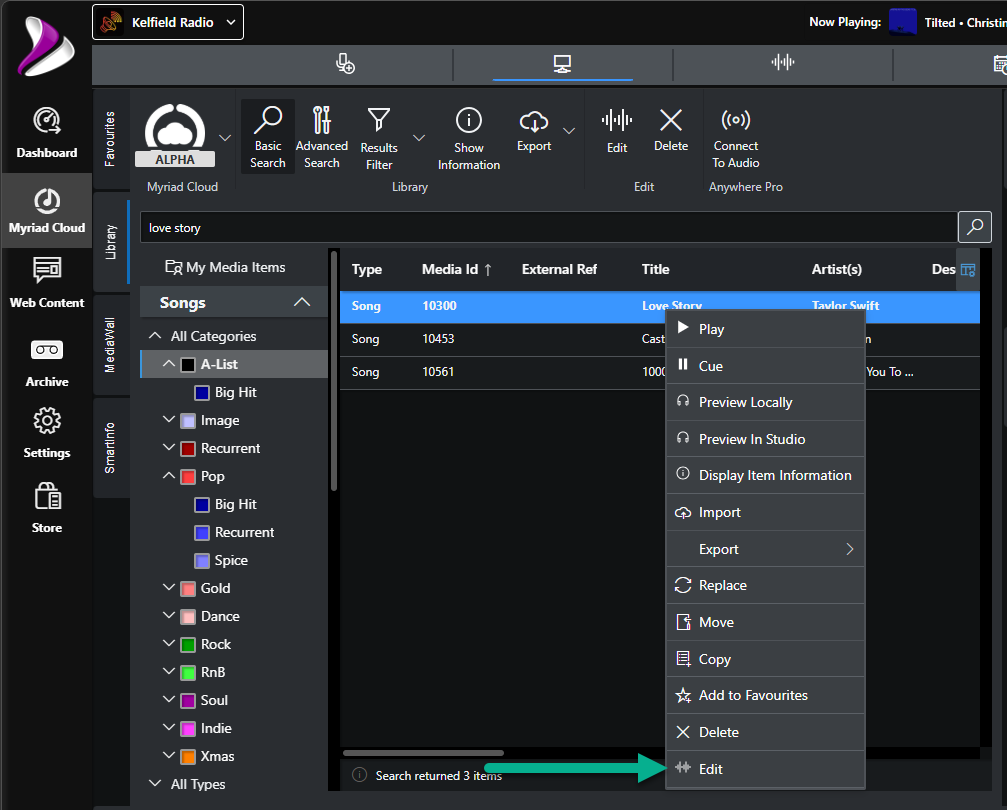
Myriad Cloud - In the Edit Window, click on the Categorisation Tab (Cats tab in Myriad Cloud)
and set the Secondary Category
to be Featured Song.
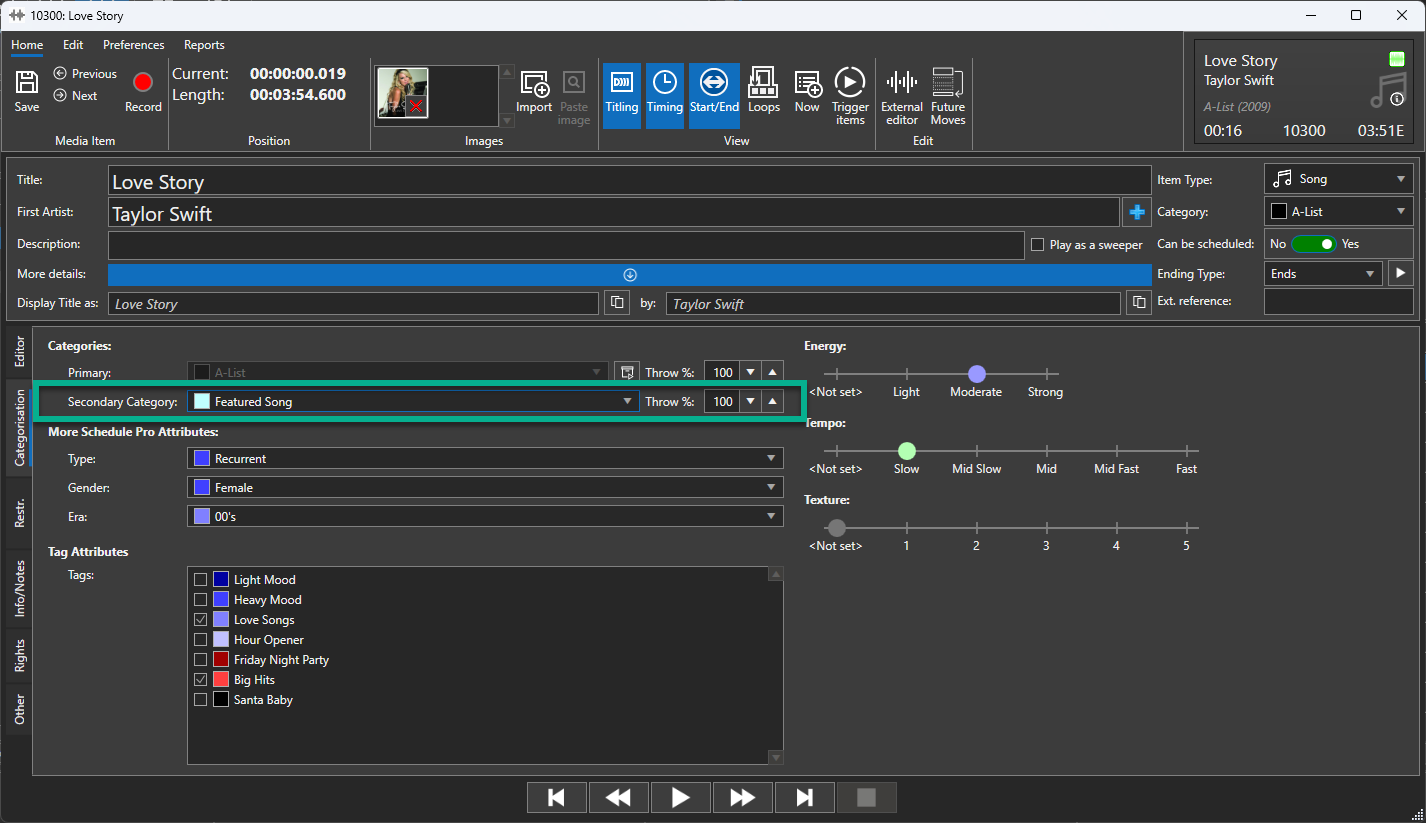
Myriad Playout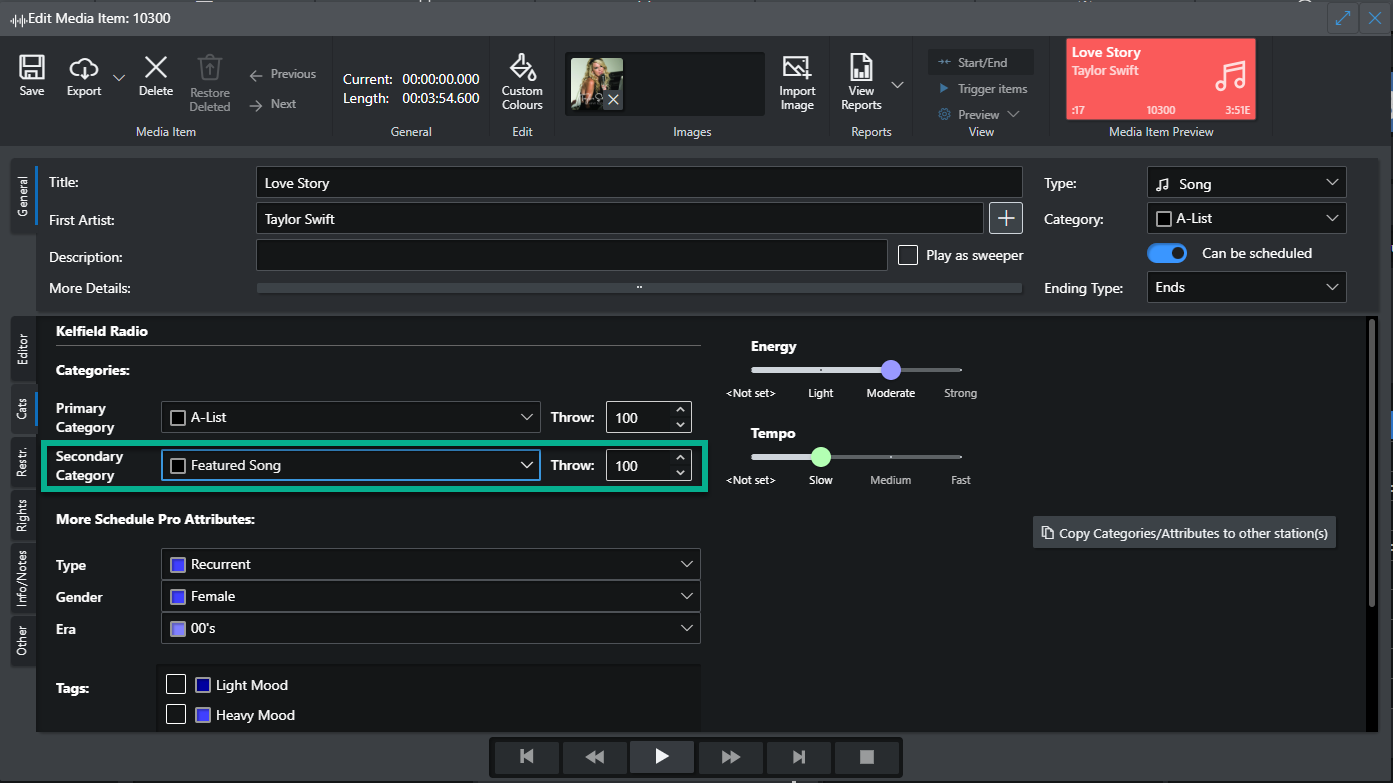
Myriad Cloud - To manually remove
the Secondary Category, repeat these steps but set the Secondary Category to <None/Held>.

Using Future Moves to automate this adding and removing Songs from the Featured Song Category (Myriad Schedule Pro)
You can use the Future Moves tool in Myriad Schedule Pro to automate adding and removing the Featured Song as a Secondary Category, to allow you to plan your 'Featured Song' rotations in advance.
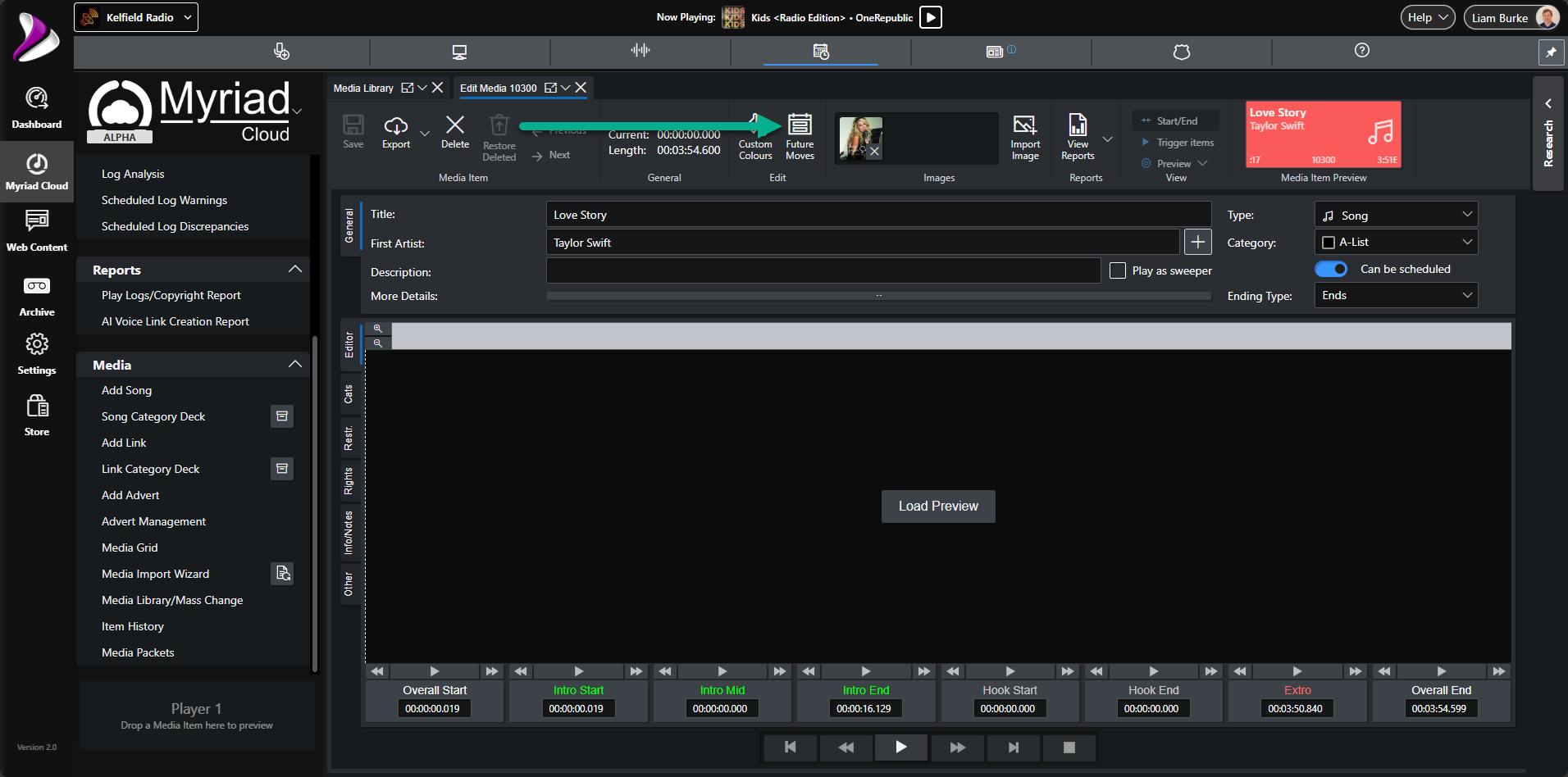
- Right click on a Song in the Library or Media Wall tabs and select Edit.Please note that Future Moves is only available from within the Schedule Module
in Myriad Cloud*.* Open the Media Library / Mass Change
window, select the Song you want to edit and click on the Edit button
on the ribbon.
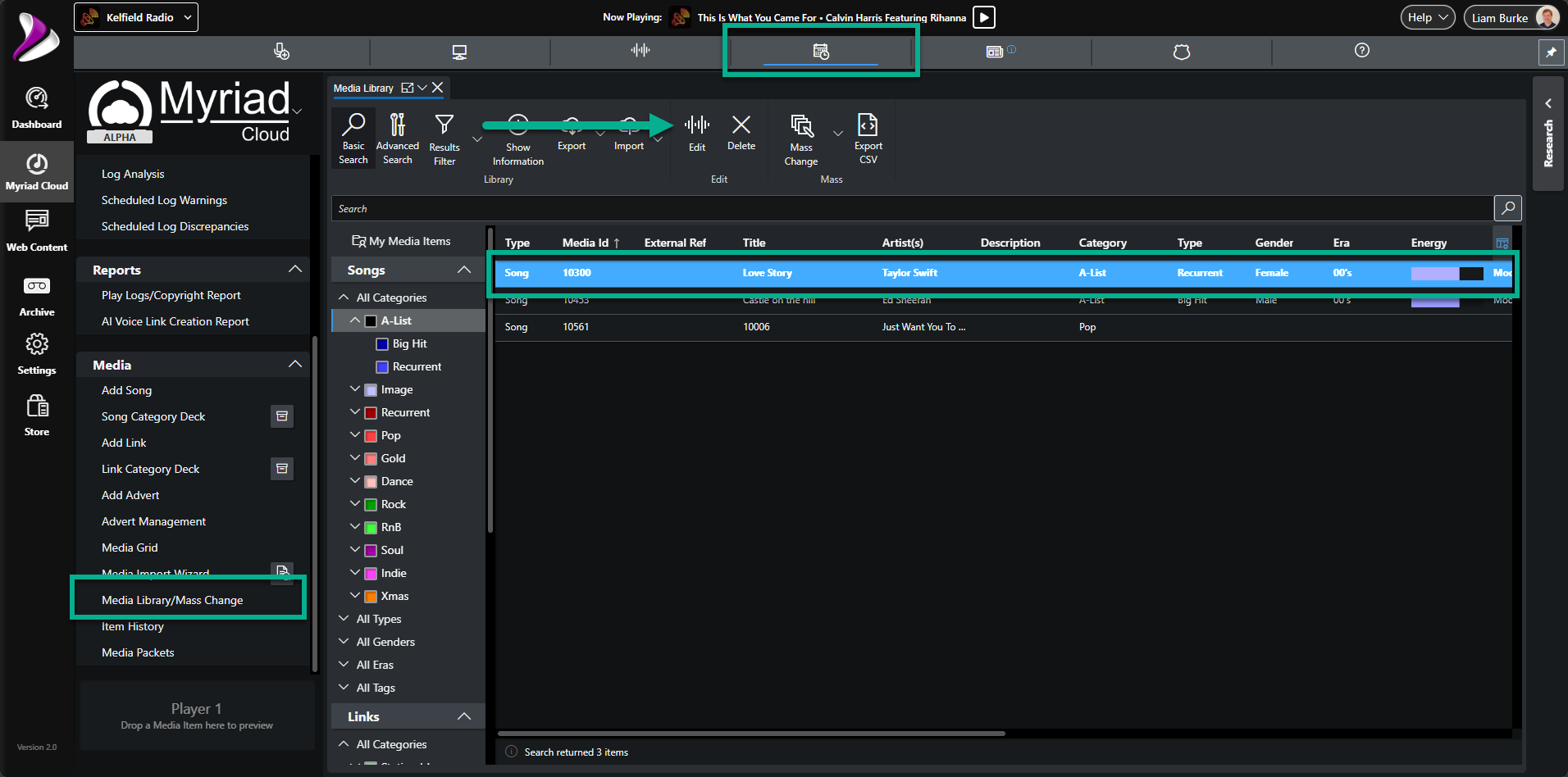
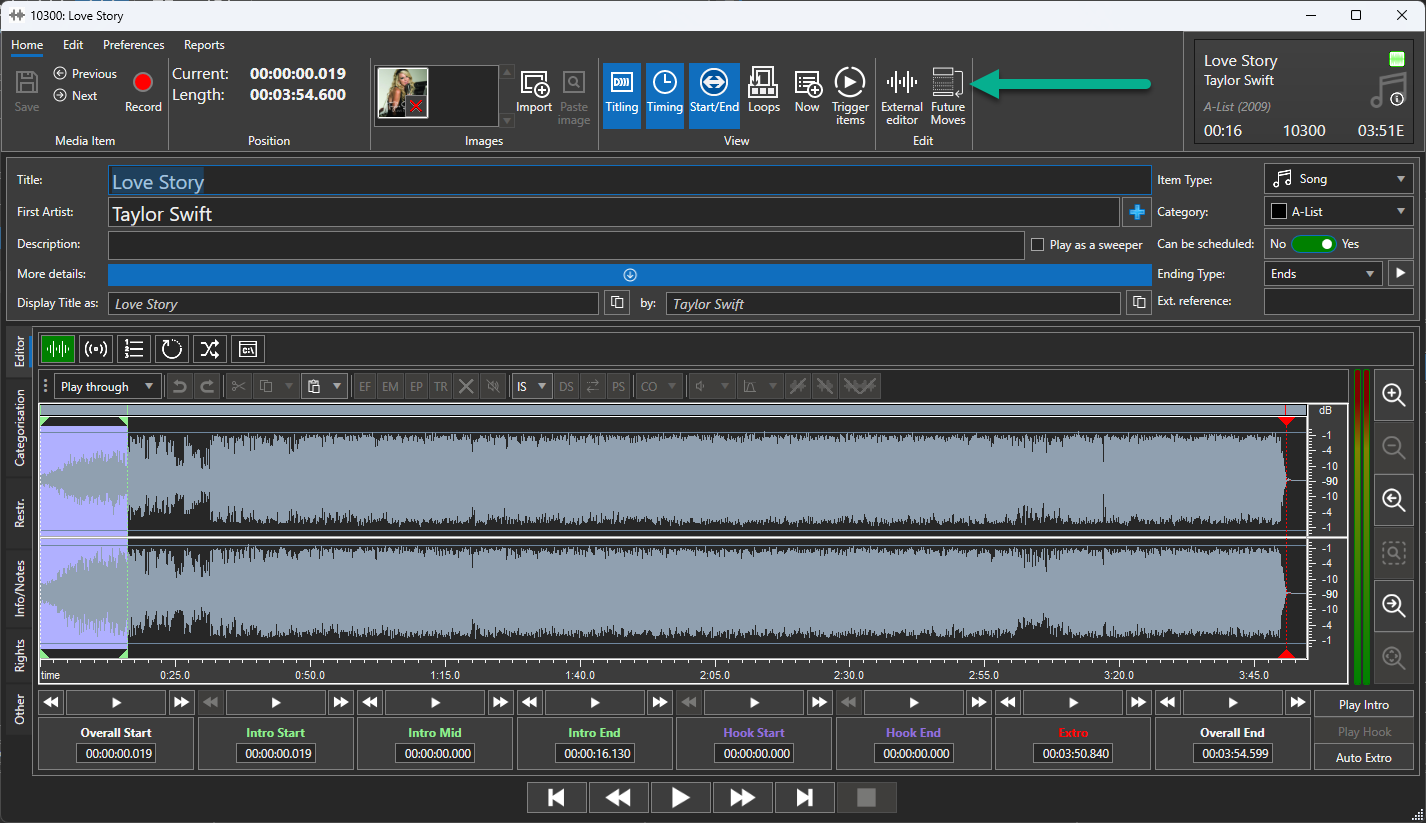
- Click on the Future Moves button.
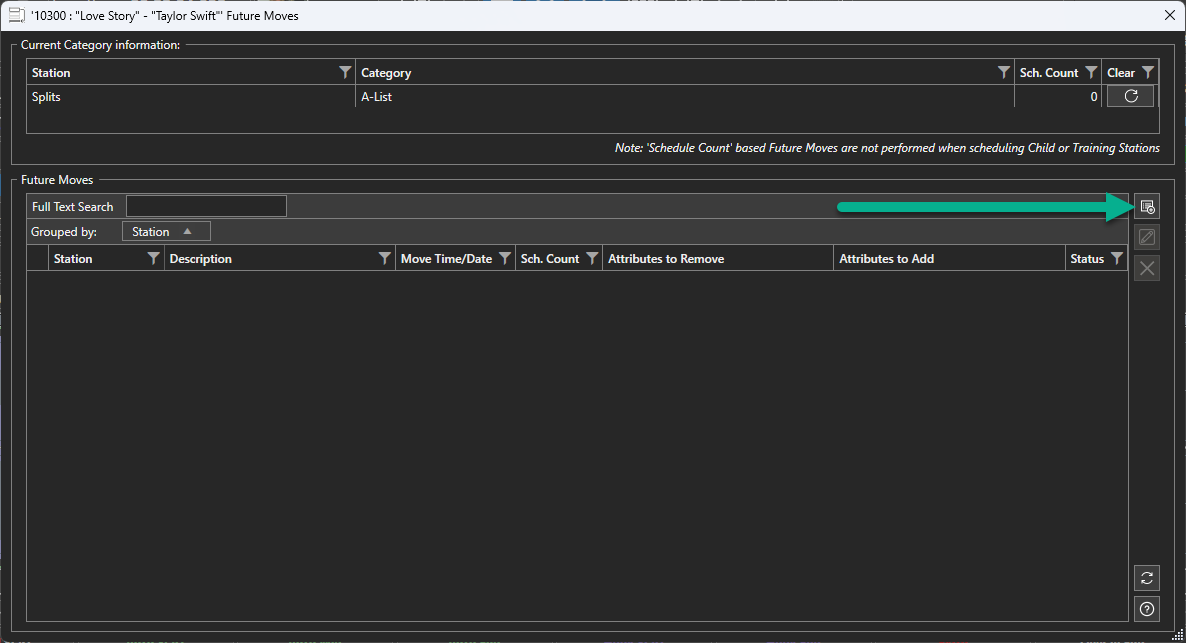
- Click on the Add Future Moves
button.
Myriad Playout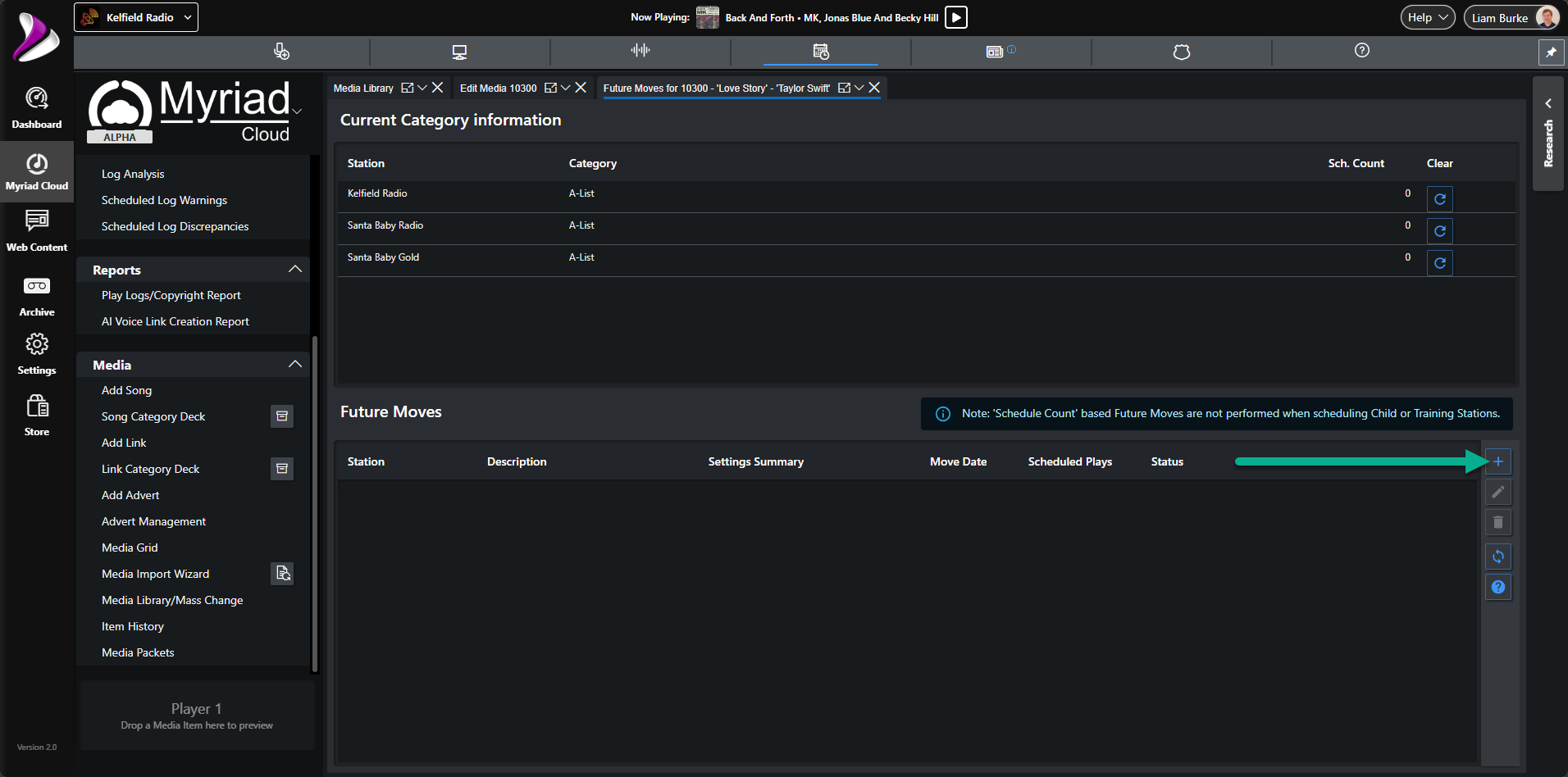
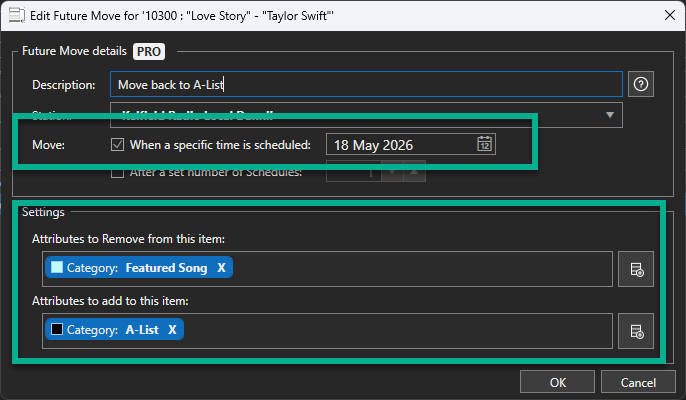
Myriad Cloud - Give the move a suitable Description, set a Move Date
and set the Attribute to add
to be the Featured Song Category.
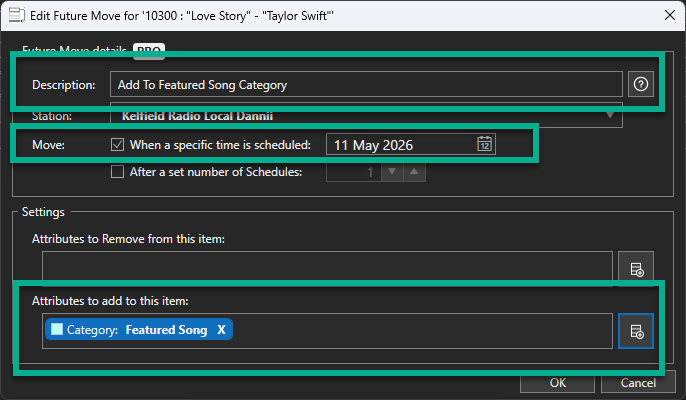
You can select the Attribute to add from a list of options.
As this Song already has A-List set as the primary Category, the Future Move will automatically add Featured Song as the secondary Category.If you wanted to remove the Song from the A-List and add it to the Featured Song Category, you would include a Remove Attribute step to remove from the A-List. This ensures the Song is only scheduled in Clocks positions where the Featured Song Category is specified.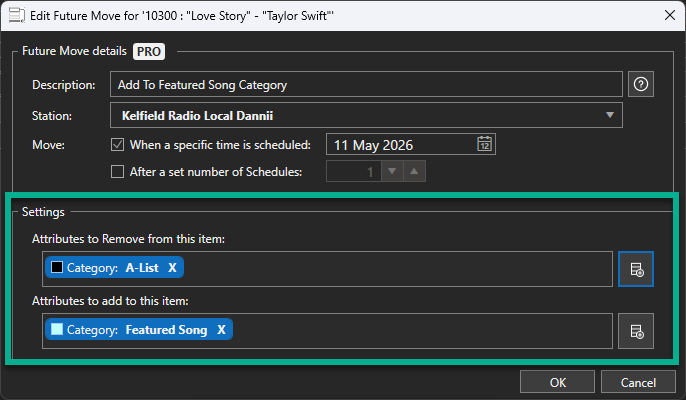
In this scenario, the first step would remove the Song from the A-List and the second step would add the Song to the Featured Song Category. As the Song would not have a Primary Category set (as it was just removed), the system would automatically set Featured Song as the Primary Category.The process is exactly the same for Myriad Cloud users.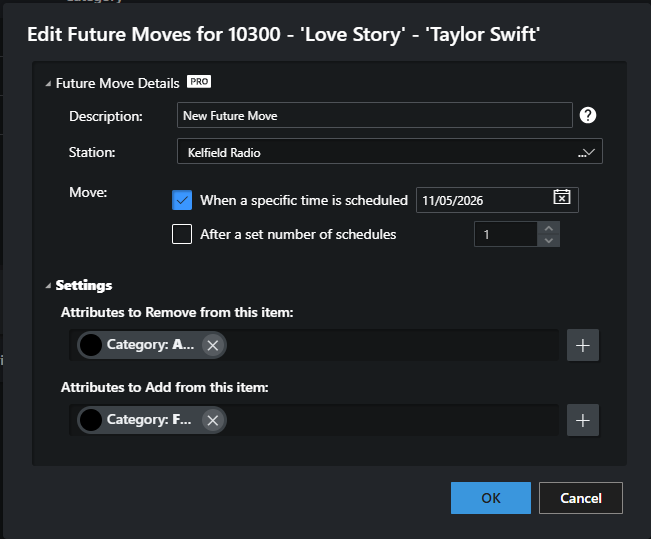
- Add in another Future Move for the Song to remove it from the Featured Song Category
after the desired time. Follow the same steps as before but this time we will either just remove the Featured Song Category or remove it and restore the original Category (depending on whether you removed the original Category in the last step).
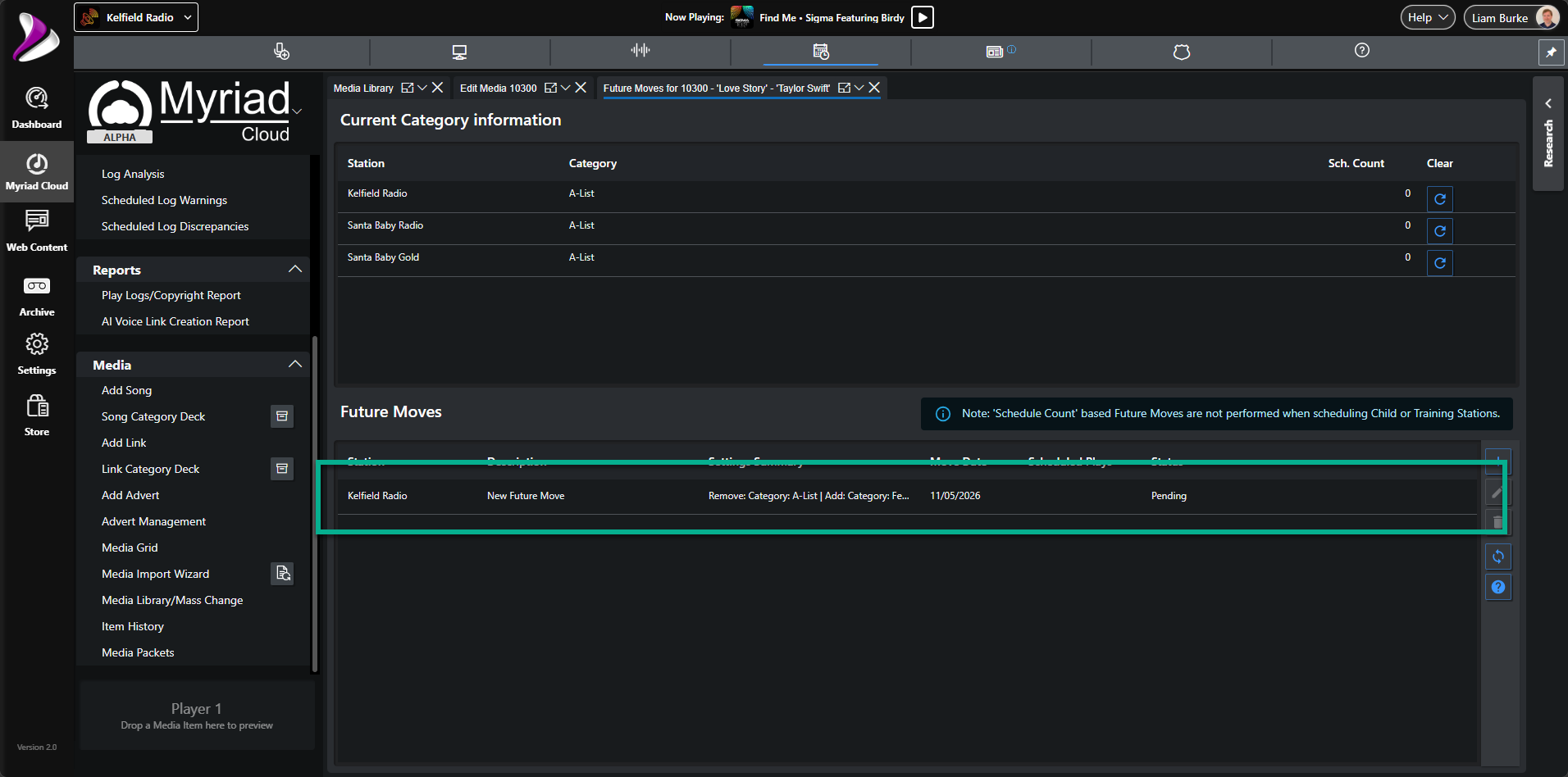
Once you have confirmed by clicking OK, the full list of Future Moves for the Song is displayed.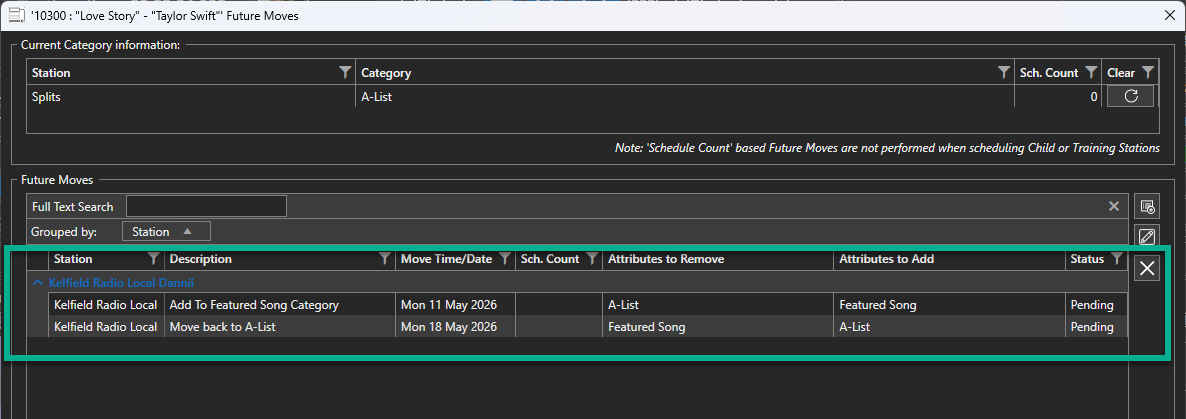
In this example:11th May 2026 - Remove from A-List Category > Add to Featured Songs Category.
18th May 2026 - Remove from Featured Songs Category > Add to A-List Category.This will result in the Song being in the the Featured Songs Category for a week before returning to it's original Category. Myriad Cloud offers the same options to allow you to use Future Moves to plan movements in and out of Categories.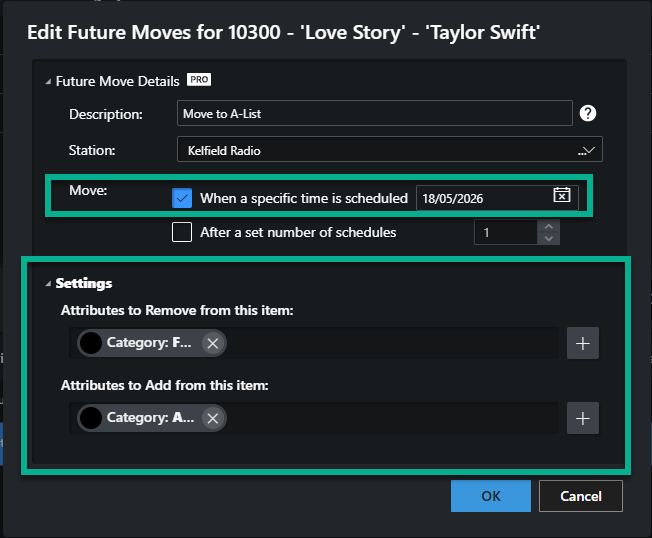
You can view the planned Future Moves for the Song.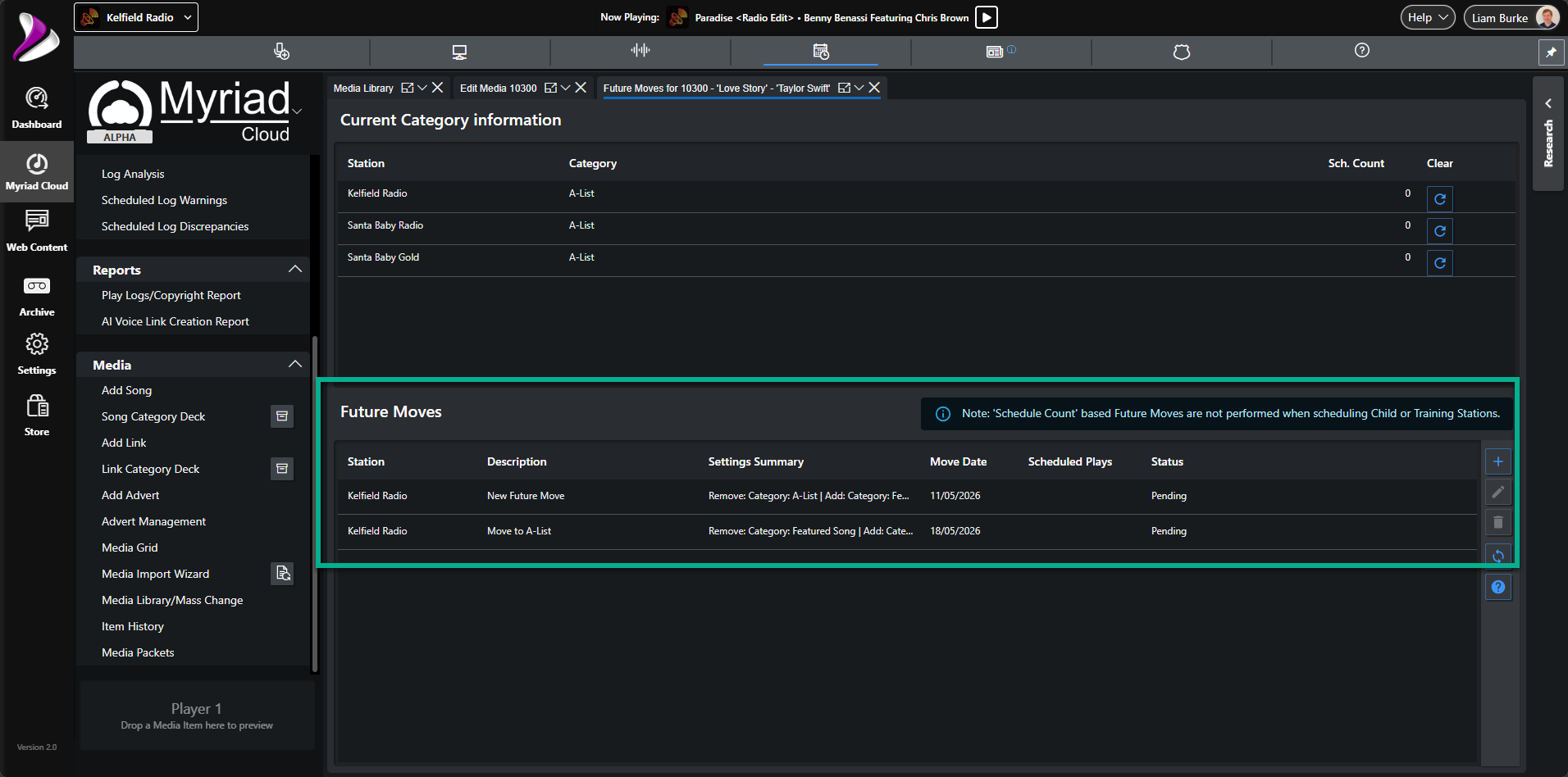
- Repeat this for more Songs and date ranges to build up a list of Featured Songs for the as far ahead as you wish.
Step 3: Integrate the Category into Your Clocks
A category is only useful if it is actually scheduled to play. You need to ensure your featured song appears at a consistent time in every show to build listener habit. By placing the category at a fixed position in your clocks, you guarantee its exposure.
- in Myriad Playout, click on the Station Menu > Edit Myriad Schedule Clock Alignements
option and then pick a Clock Assignment if you have more than one available.
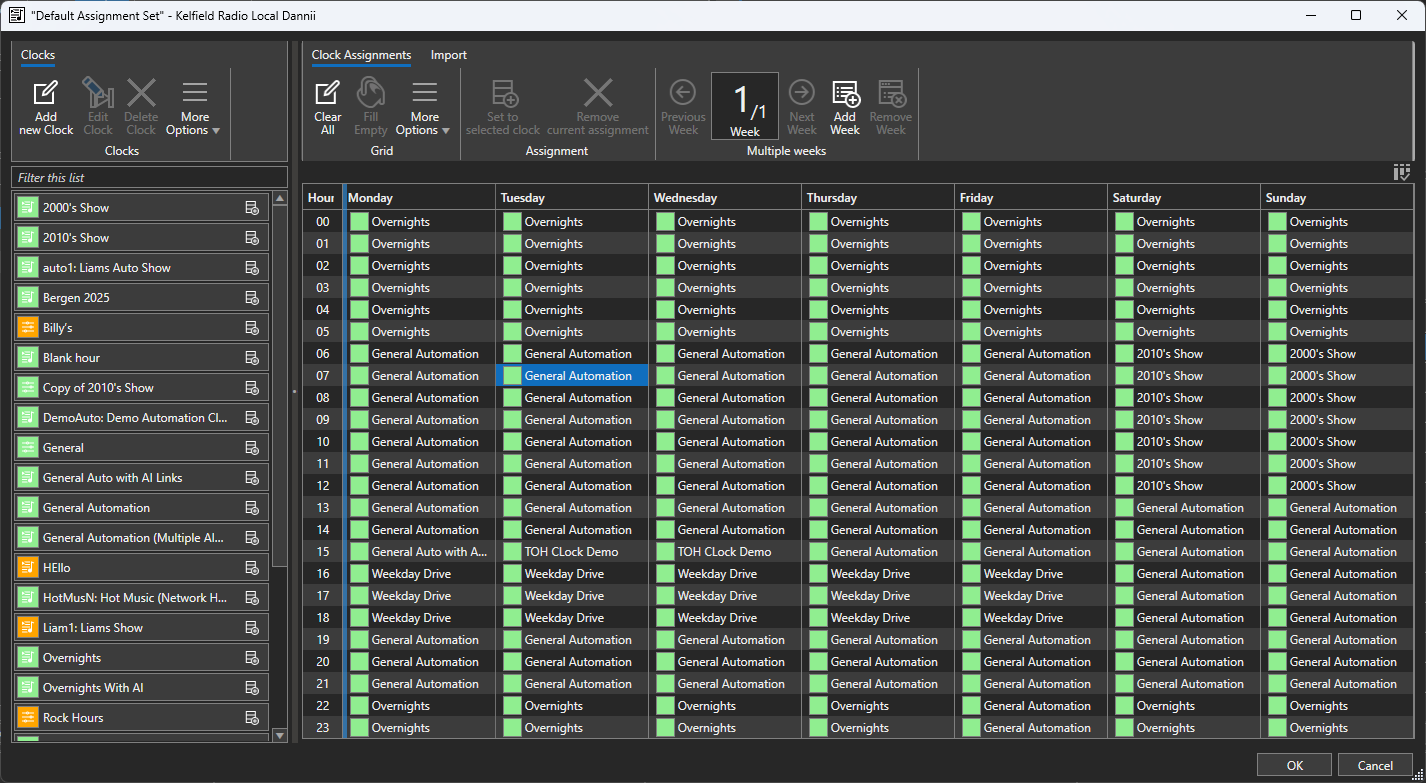
You can also access this from the Edit Clock Assignments option in the dedicated Myriad Schedule desktop app.If you are a Myriad Cloud user, switch to the Schedule Module and click on the Edit Clock Assignments option. If you have multiple Clock Assignment grids available then select the one you want to work with.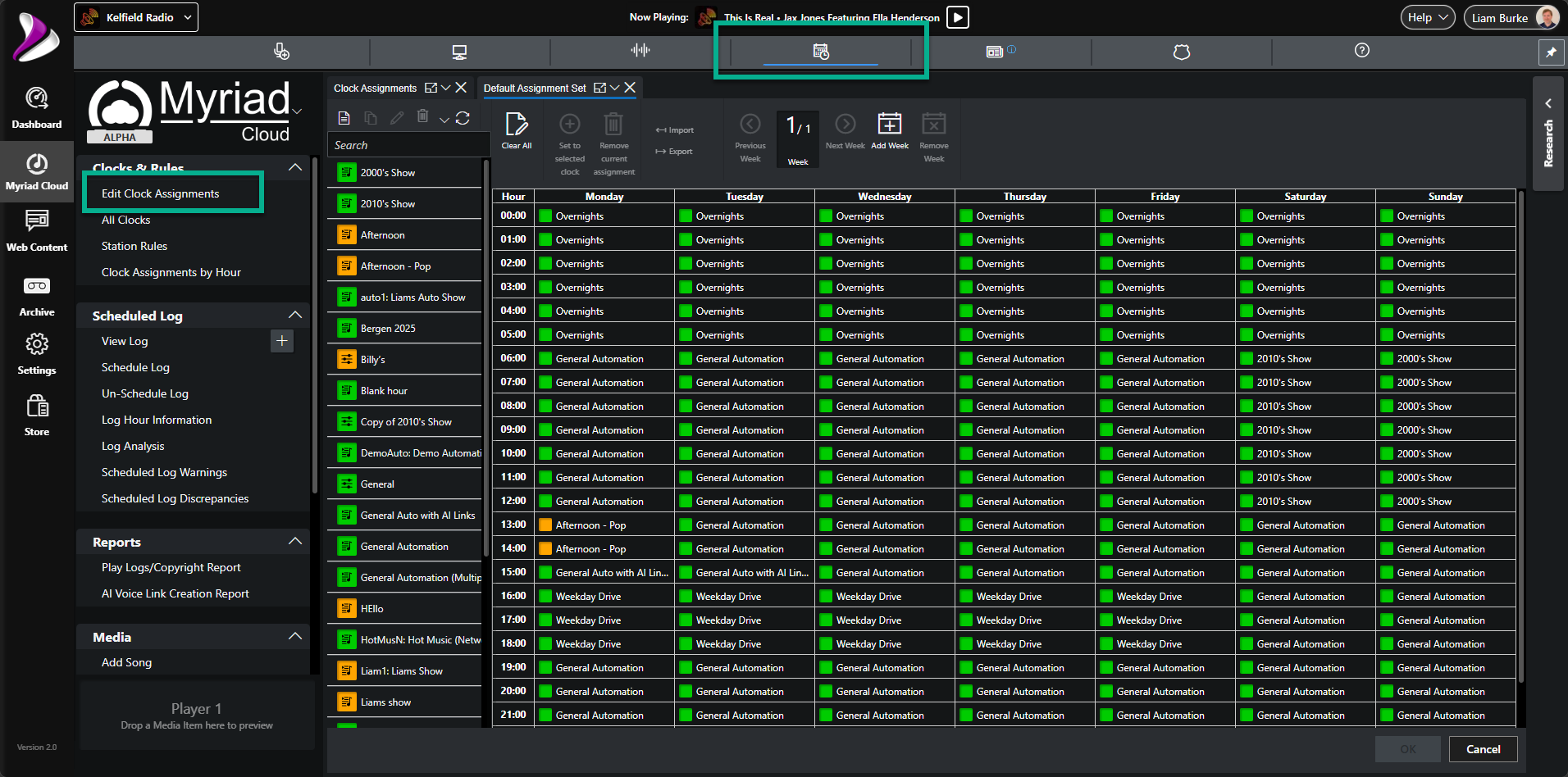
- Open the Clock you want to add the Featured Song category to.
- Set the Category
for a Song to be Featured Song
using the drop down options. Identify a high-impact position in your hour (for example, at 15 or 45 minutes past the hour).
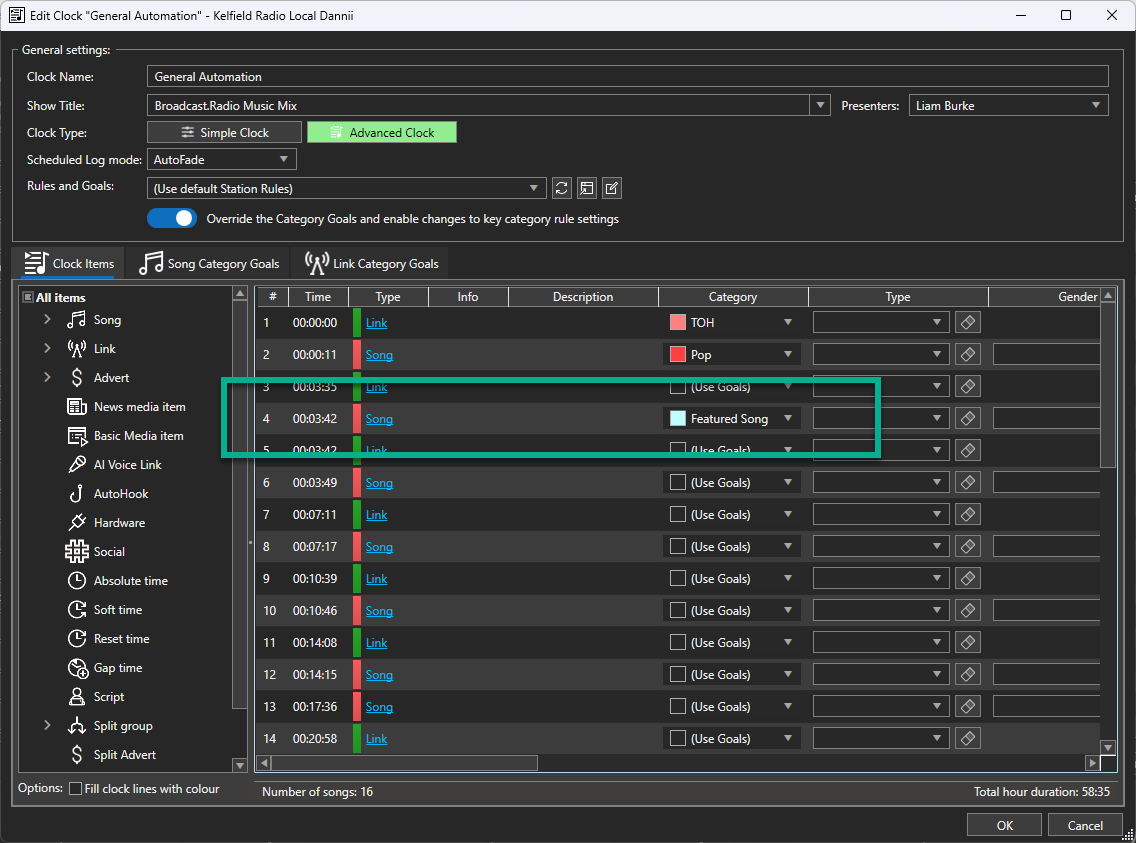
This process is the same in Myriad Playout (above) and Myriad Cloud (below).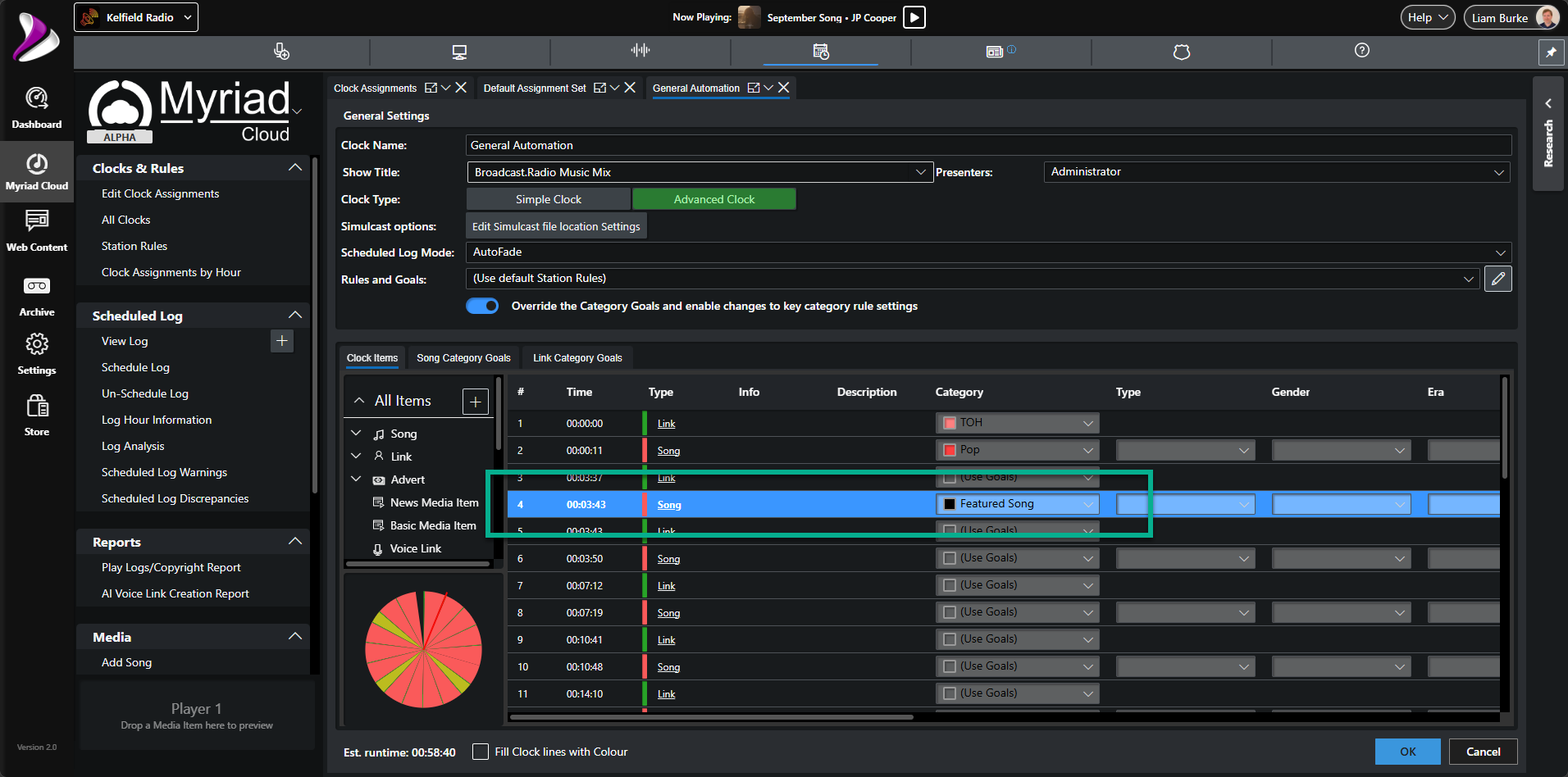
- When you are happy, click on OK.
- Repeat for all Clocks that you want to include the Featured Song Category in.
Because the category only contains one song, Myriad Playout & Automation will schedule that specific track every time that clock position is reached. This creates a high-rotation "power play" effect without you having to manually drag tracks into the log every day.
You can also add multiple Songs to the Featured Song Category if you want to showcase several tracks. These will be scheduled just like any other Category although you may have to relax or completely remove Scheduling Rules for the Category to prevent unscheduled items.
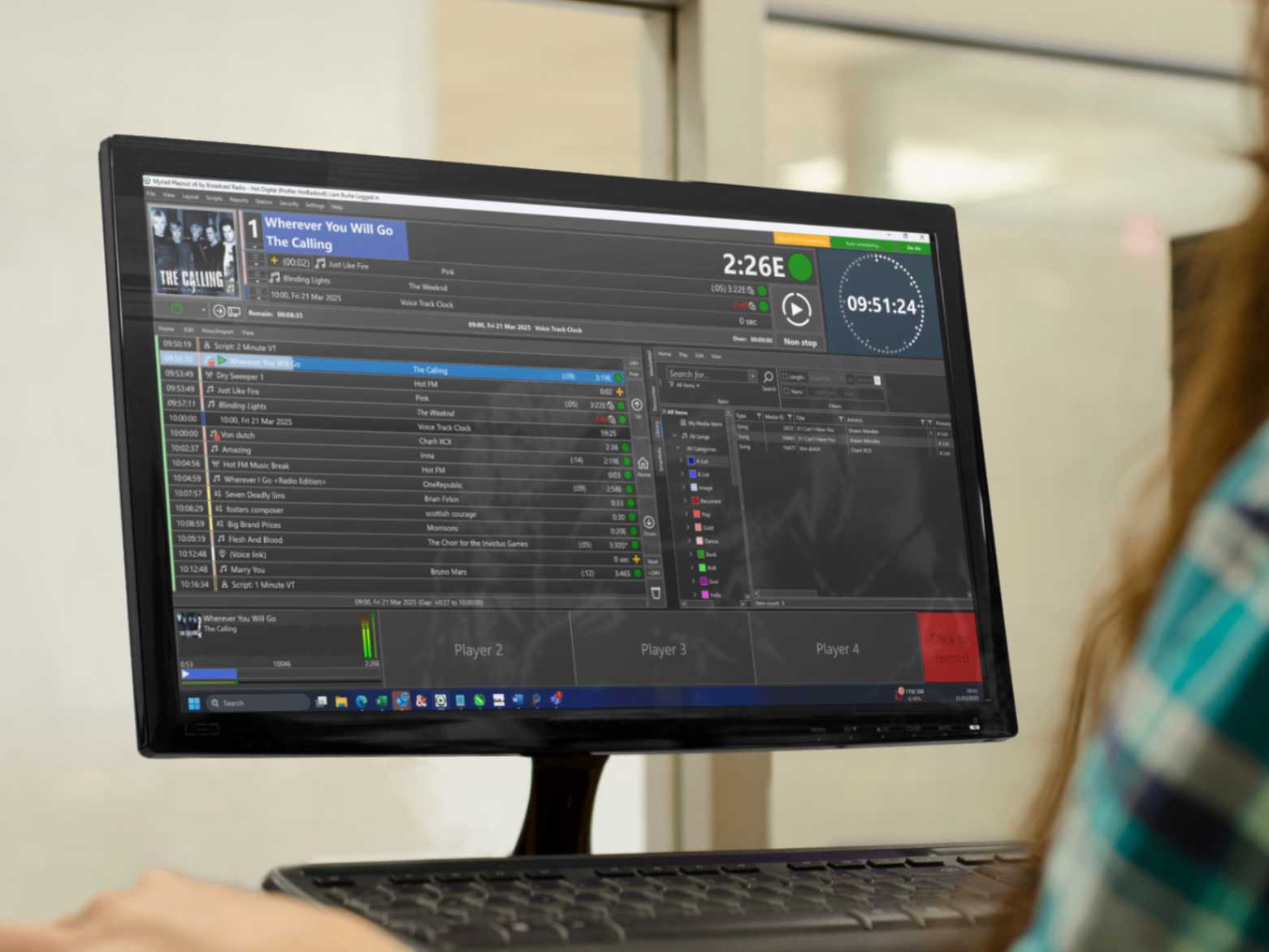
Step 4: Create a Dynamic List in the Broadcast.Radio Website CMS
The Broadcast.Radio Website CMS uses "Lists" to organize content for your website widgets and apps. To showcase your featured song, you need a List that looks specifically at your "Featured Song" category and nothing else.
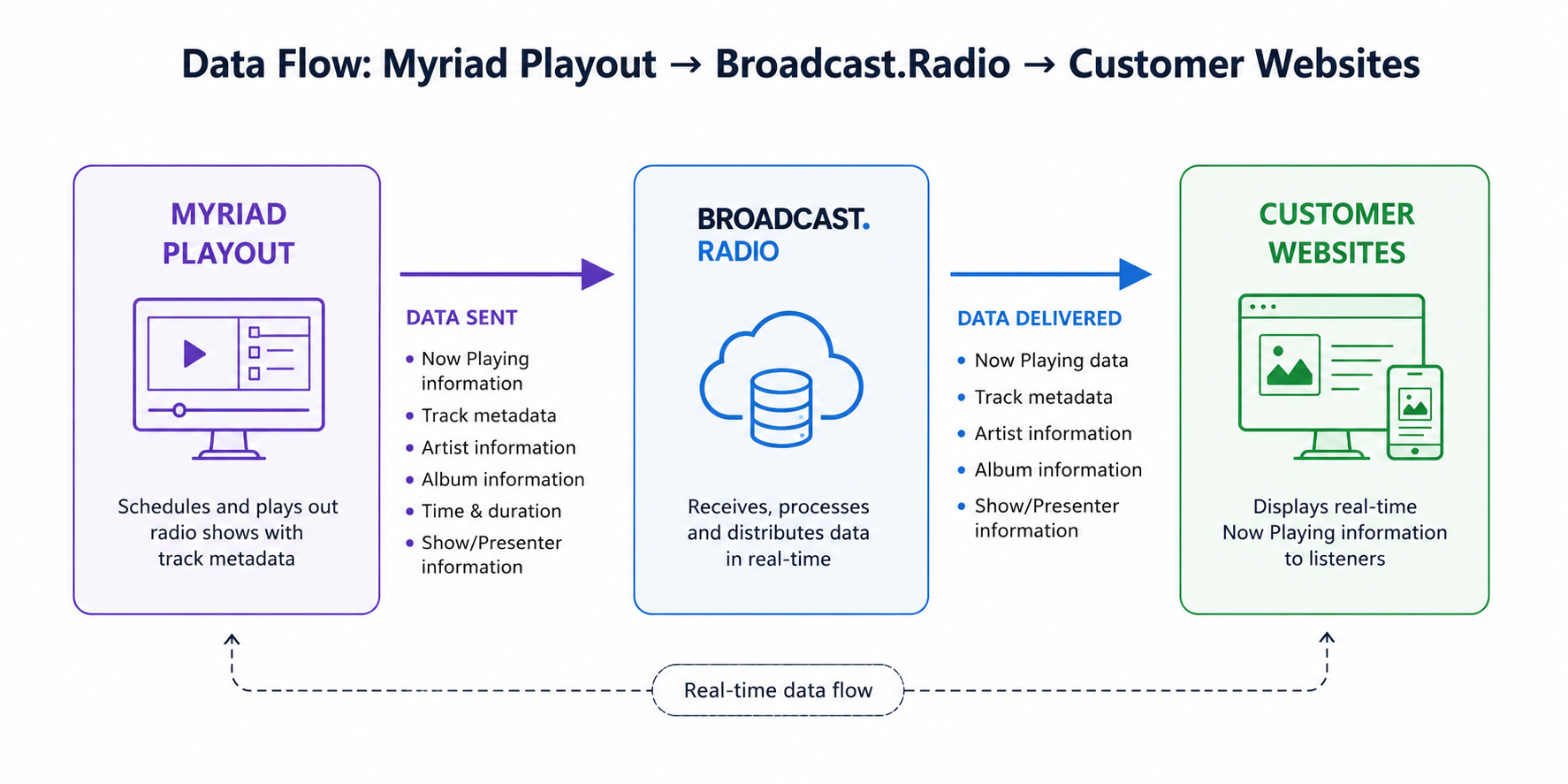
Whether you are using Myriad Cloud or on premise Myriad Playout, playlist synchronizing with Broadcast.Radio is built in. Myriad Cloud customers will have this option enabled by default and Myriad Playout customers will have this automatically configured if they are already using Myriad Anywhere.
To create a new List in the Website CMS :
-
Login to the Broadcast.Radio platform ( https://my.broadcast.radio).
-
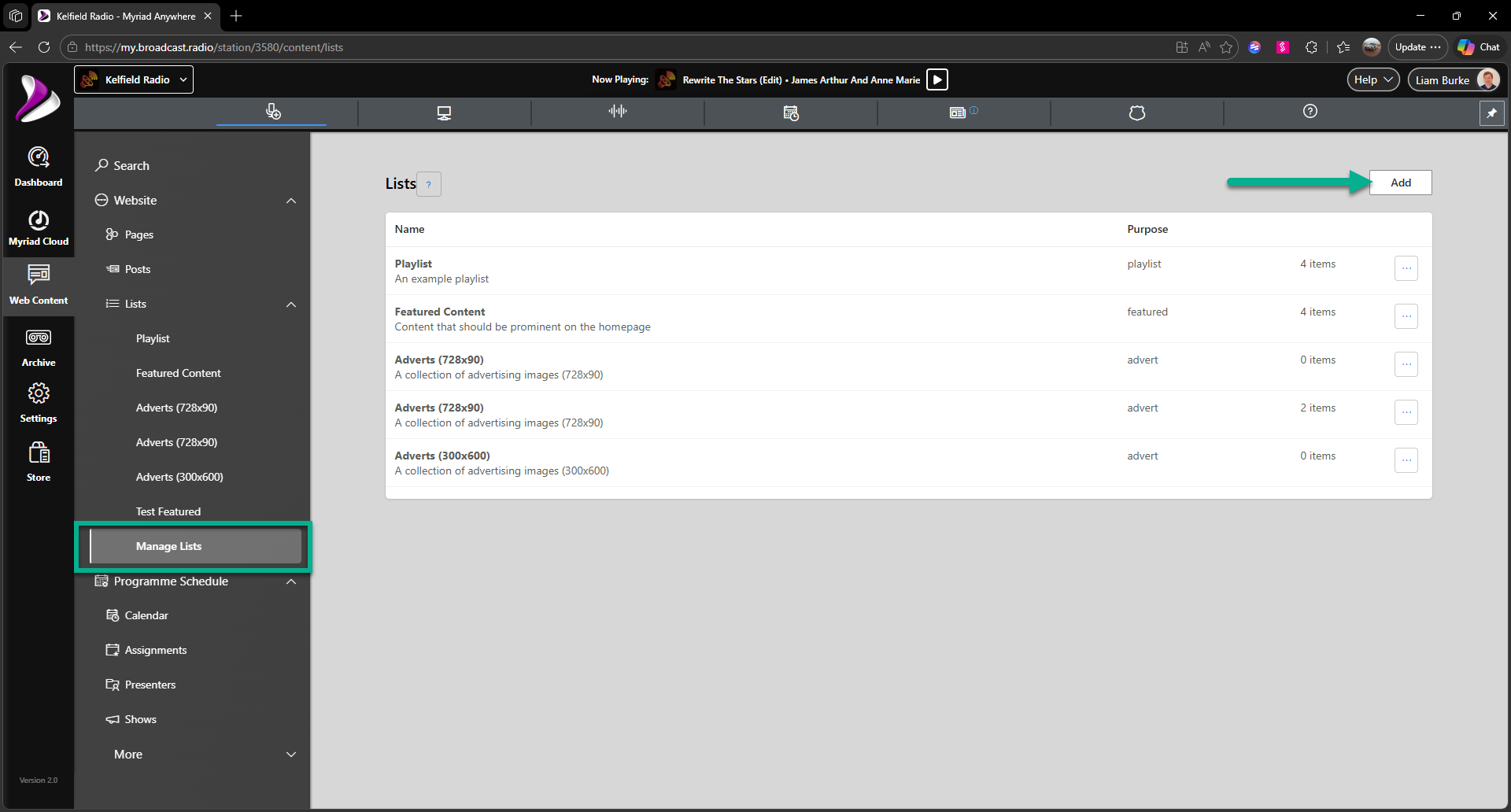
Click on Web Content > Lists > Manage Lists then click the Add button.
-
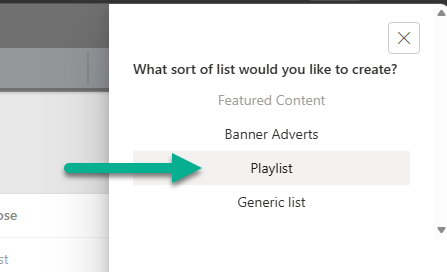
Click on the Playlist option.
-
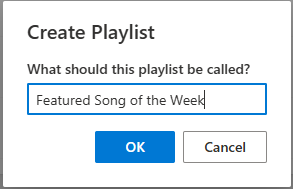
Give the List a Suitable Name and then click OK.
-
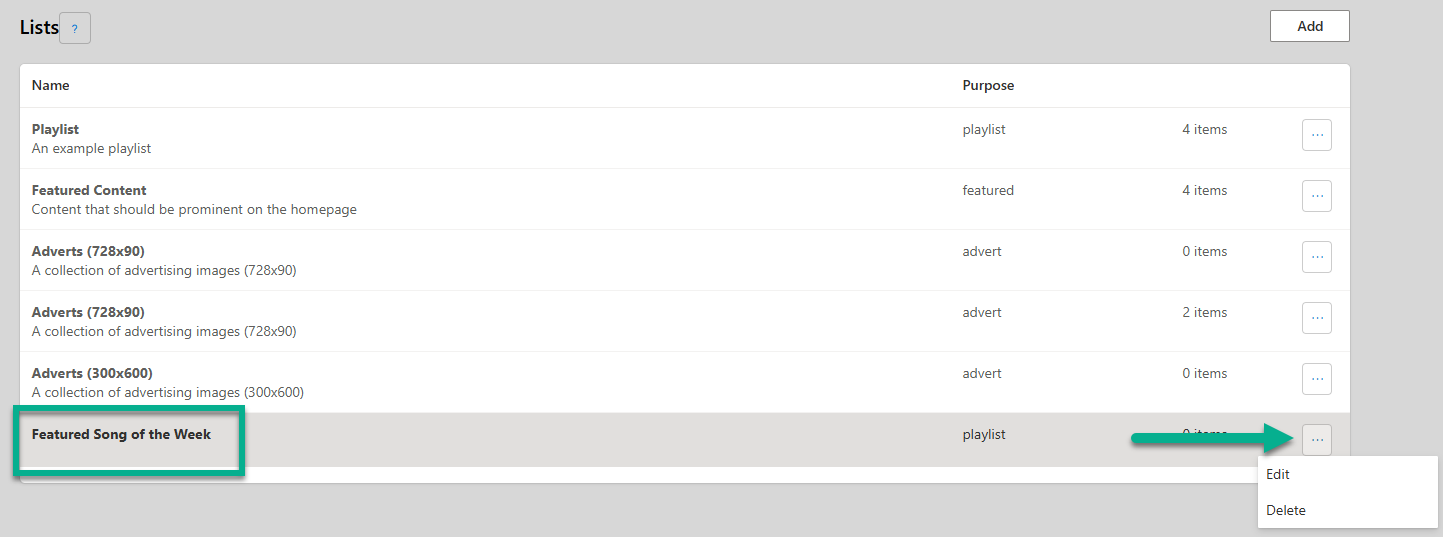
The new Playlist will be added to the available Lists. Click on the ... button and select Edit to edit the Playlist.
-
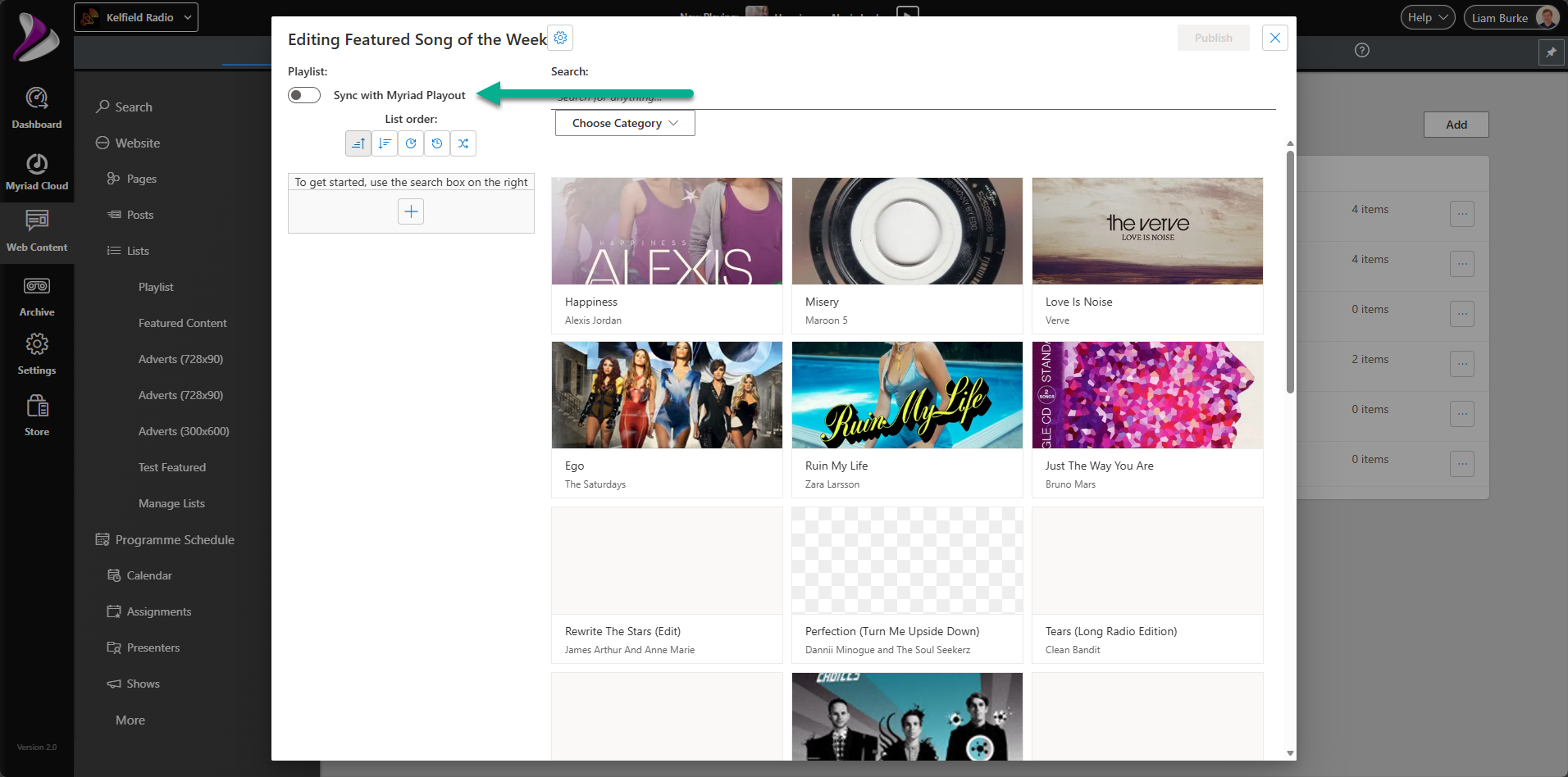
Turn on the Sync with Myriad Playout option.
-
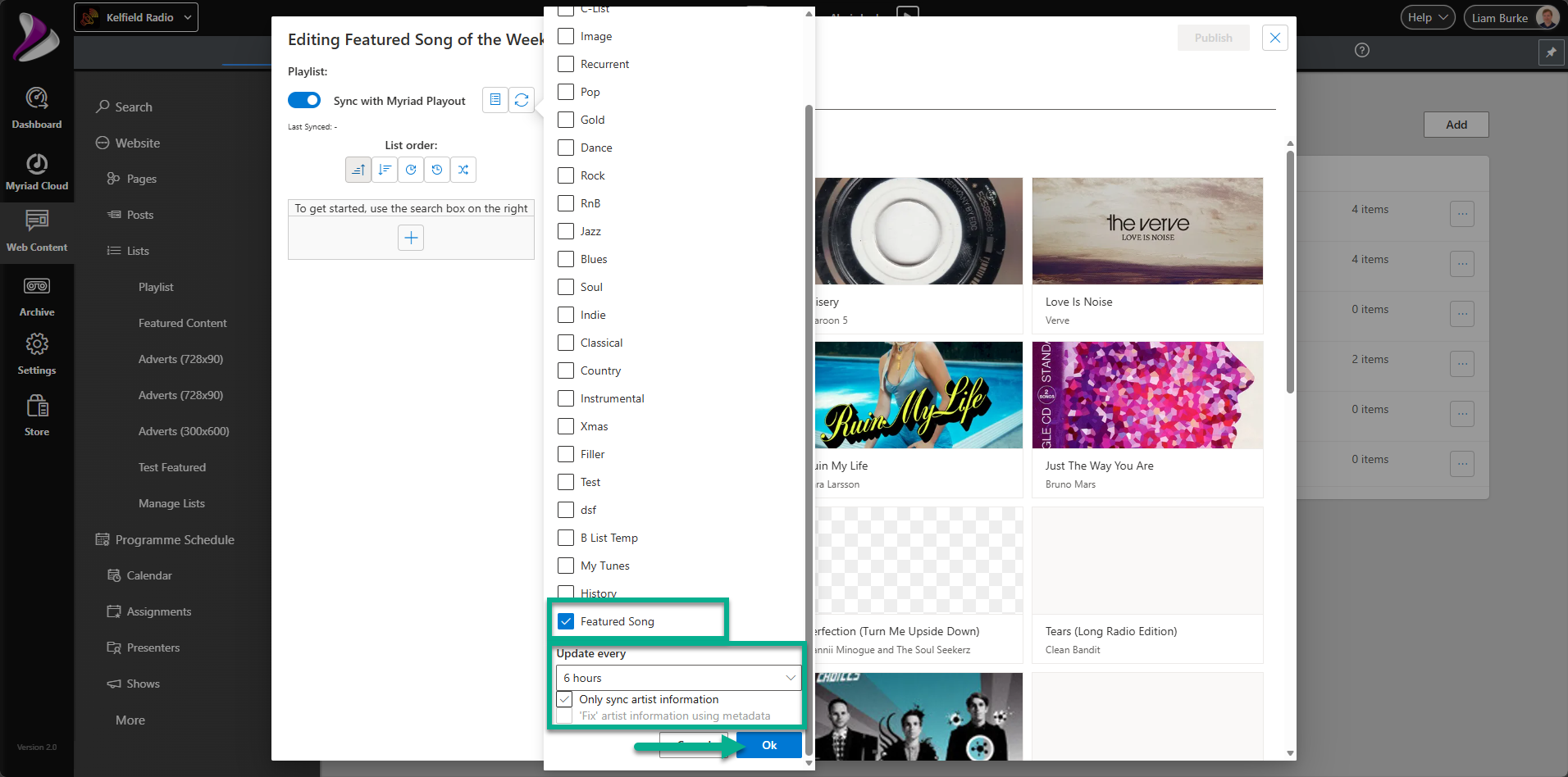
Select the Song Category(or Categories) that you want to sync to this Playlist. You can also set the frequency of thy synchronise process. In this case we will select the Featured Song Category. When you are happy click OK.
-
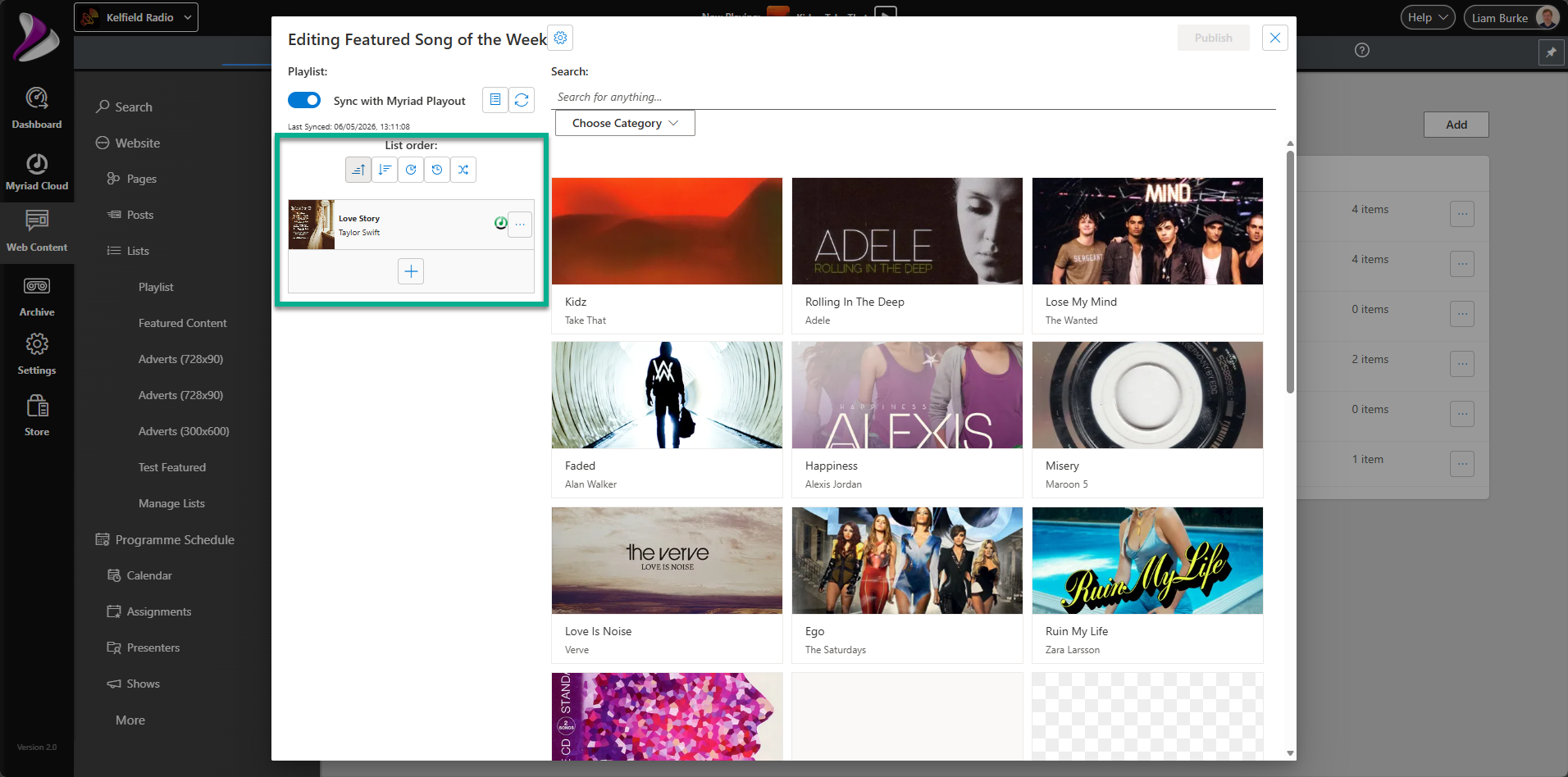
The Playlist will now include all Songs in the Featured Song Category, in this example, it is just one Song but you could opt to have multiple featured Songs if preferred.
By linking the List to a specific category rather than a specific song file, the content of the list will change automatically whenever Myriad Schedule updates the category. This is the "Playlist Sync" feature in action.
Step 5: Add the Featured Song Section to Your Webpage
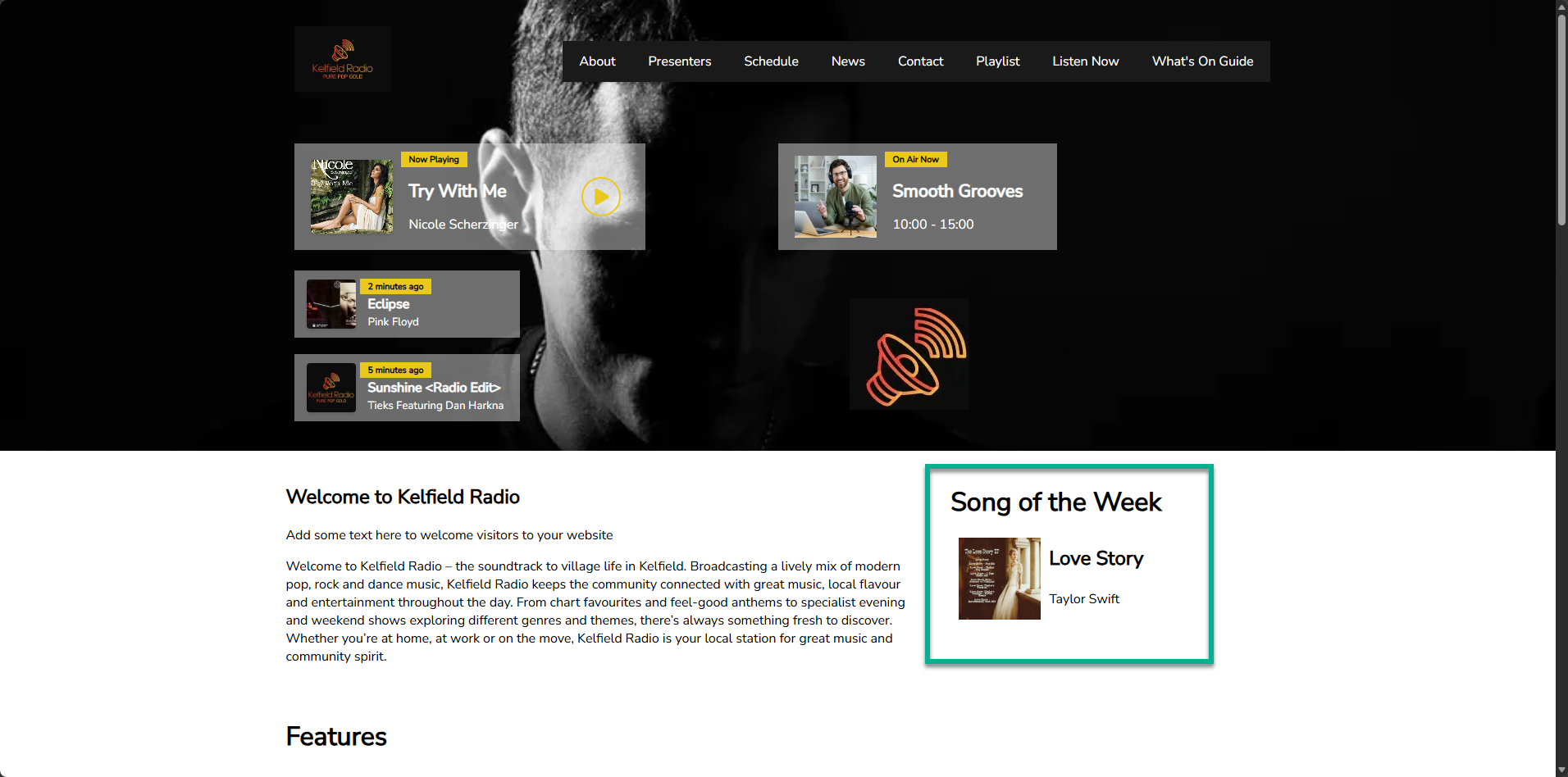
The final step is to make this information visible to your audience. The Broadcast.Radio Website CMS allows you to drop dynamic widgets onto any page that pull information directly from your Lists.
-
Login to your Broadcast.Radio account ( https://my.broadcast.radio)
-
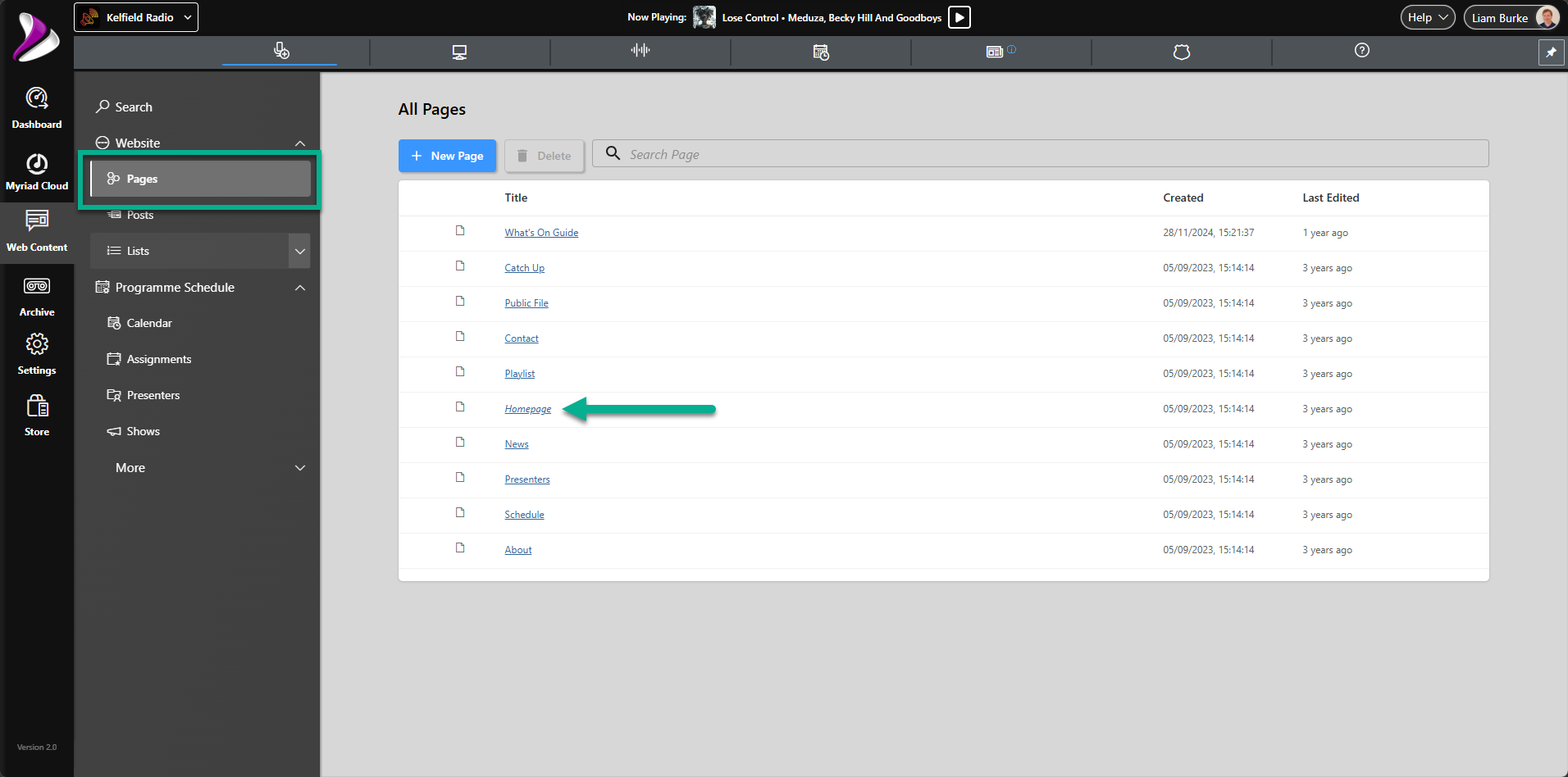
Click on Web Content > Pages.
-
You can open an existing web page or create a New Page. In this example we will add the Featured Song section to our Homepage so select Homepage from the list of available pages.
-
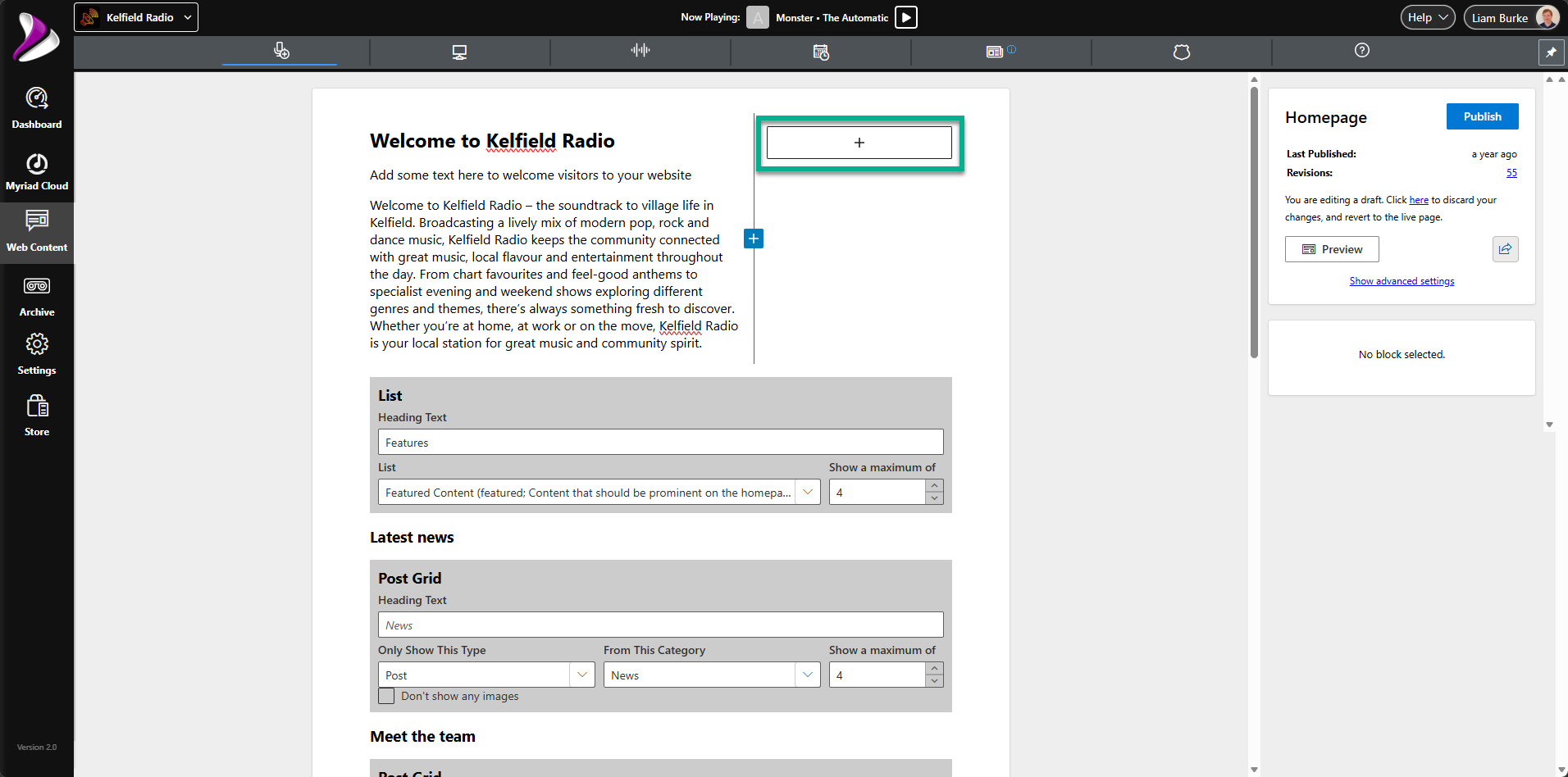
On the current Homepage, the top row is divided into two columns with a title / description text block on the left and currently nothing on the right.
-
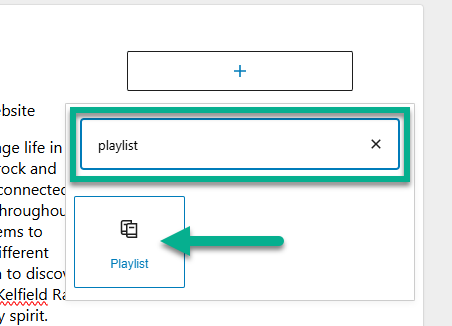
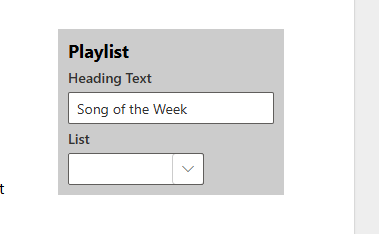
To add the Song of the Week feature to this empty column, click on the + button and select the Playlist widget. You can type 'playlist' into the search box to help find the widget.
-
Type in a suitable Title in to the Heading Text field.
-
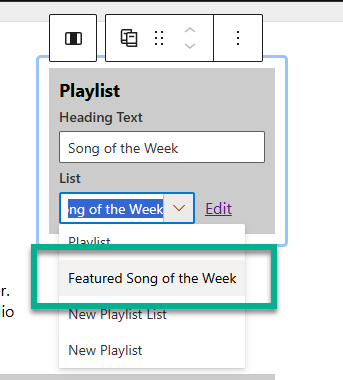
Use the List drop down to select the Featured Song of the Week list created earlier.
-
Click on the Publish button.
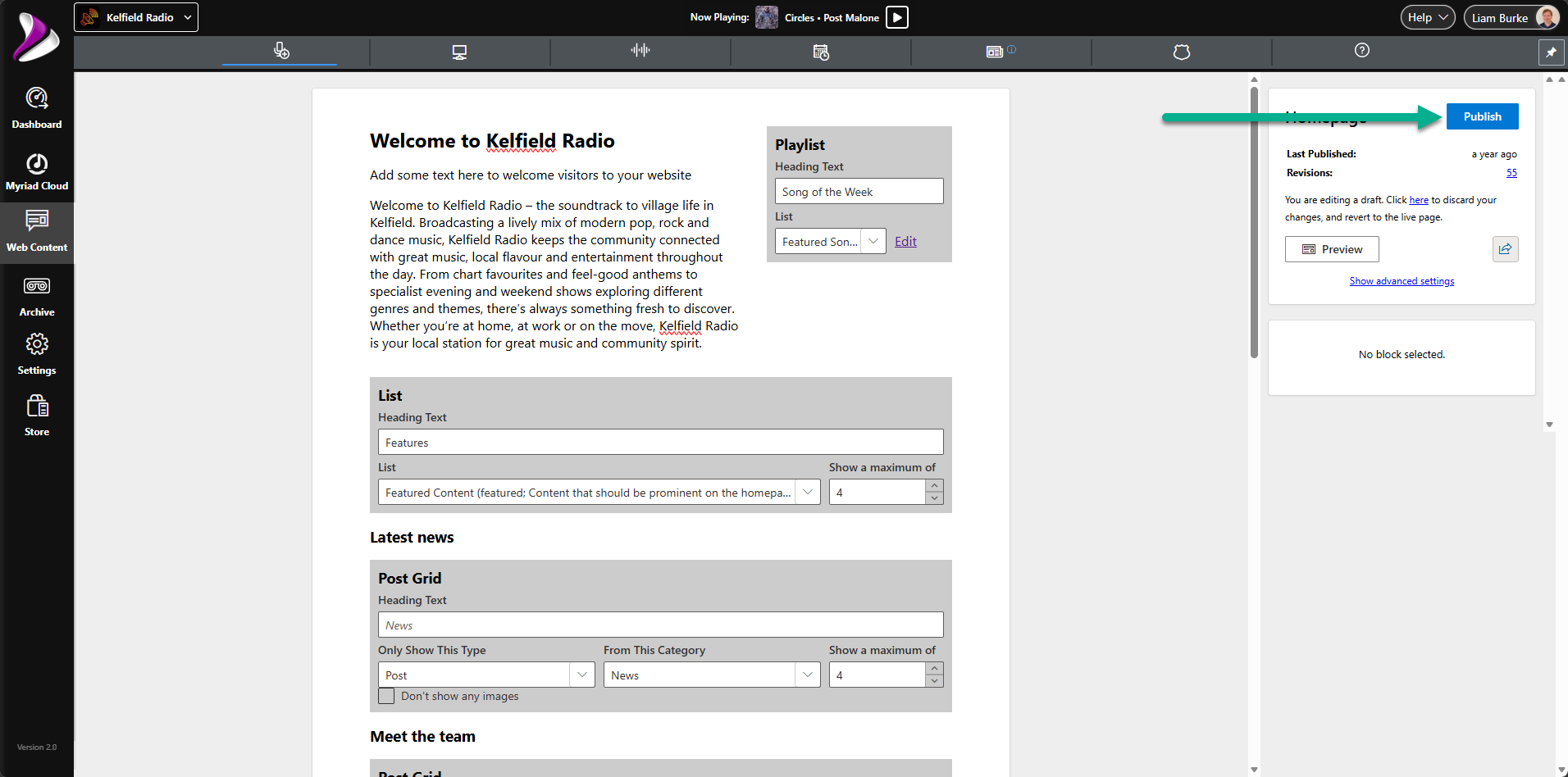
This will publish the changes to your website.
Because this widget is connected to your live Myriad database via the cloud, it will always display the song currently residing in your "Featured Song" category. When Future Moves swaps the song at the start of the week, your website updates instantly. No manual web editing required.
Why Automation Matters for Modern Broadcasters
Implementing this workflow offers several strategic advantages for stations of all sizes. Efficiency is the most obvious benefit, but the impact on your brand consistency is equally important.
- Unified Branding: Your on-air mentions of the "Featured Song" will always match what is displayed on your website and app.
- Reduced Workload: Once configured, the system handles the rotation, scheduling, and digital updates automatically.
- Enhanced SEO: Regularly updated content on your website, such as changing song titles and artist names, tells search engines your site is active.
- Professional Polish: Listeners appreciate the "Now Playing" and "Featured" information being accurate and visually appealing.
Our radio software is built to bridge the gap between traditional playout and modern digital distribution. By using secondary categories and playlist sync, you create a dynamic listener experience that requires minimal maintenance.
Whether you are running a community station or a commercial network, these tools provide the scalability you need. You can find more tips on optimizing your broadcast workflow in our latest reviews and support documentation.
Ready to elevate your station's automation?
If you want to learn more about how Myriad Playout & Automation and Broadcast.Radio can work together for your station, our team is here to help.