Mastering Music Beds with Exclusive Play in Myriad 7
A simpler way to manage flexible talk-over beds in a busy live studio
Music beds help presenters create polished, energetic links—but ending them cleanly at exactly the right moment has traditionally required careful timing and several simultaneous actions. Exclusive Play, a new feature in Myriad Playout 7, turns that awkward studio operation into a single, reliable action.
Why variable-length beds can be difficult
A typical produced music bed contains three elements: an Intro, a ducked Instrumental section and an Out. The Intro establishes the feature or segment, the quieter Instrumental section gives the presenter space to speak, and the Out provides a polished ending.
That works perfectly when the presenter’s contribution always has a fixed duration. In live radio, however, a link may need to be shorter or longer depending on the story, the conversation or what is happening elsewhere in the programme. A bed produced to last 57 seconds is restrictive if the presenter naturally finishes after 35 seconds—or still has something useful to say when the music is approaching its end.
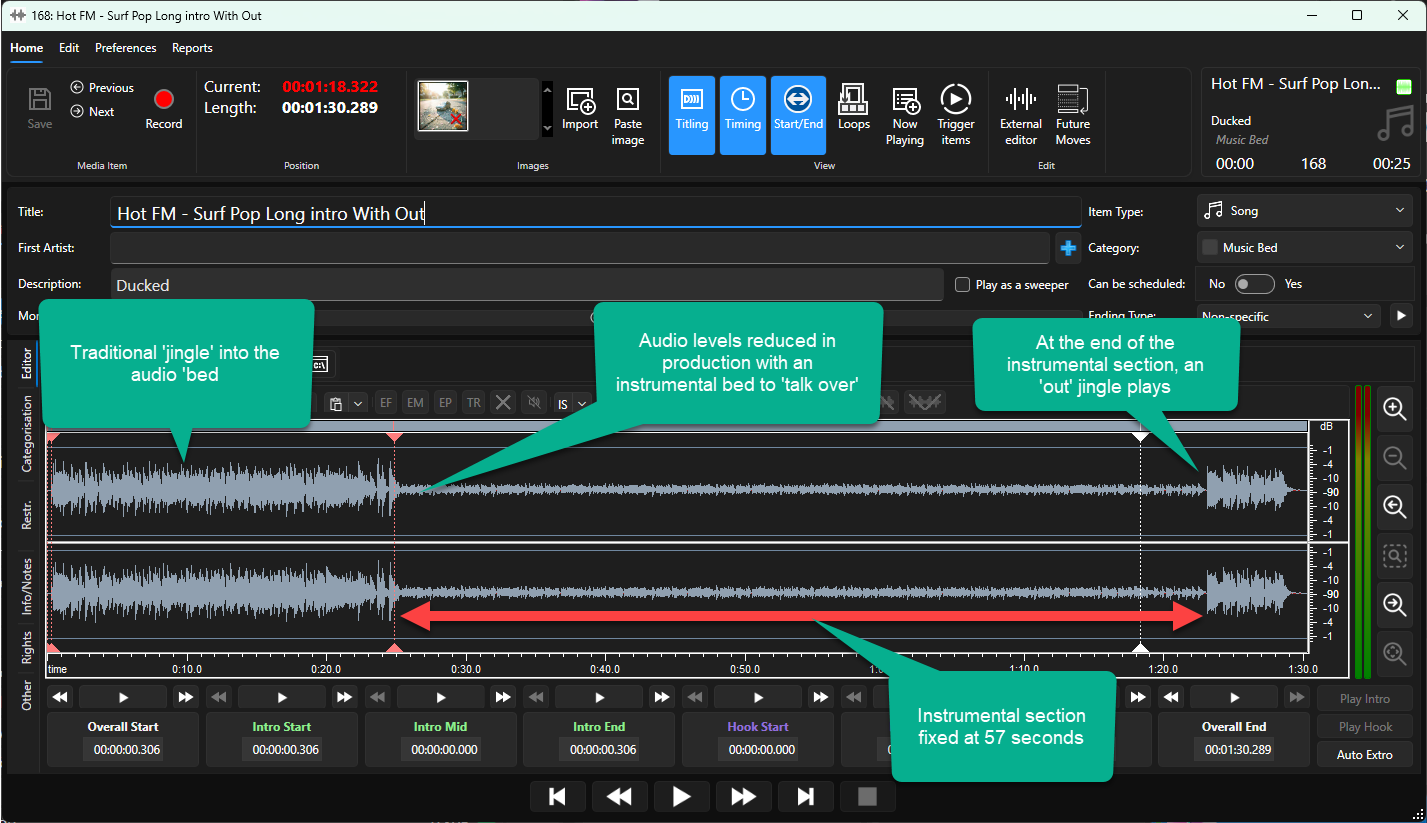
A traditional bed combines an Intro, a ducked instrumental section and an Out within one fixed-duration Media Item.
The common solution is to split the production into two Media Items. The first contains the Intro and a long or repeating ducked bed. The second contains only the Out. The presenter starts the Intro and bed, speaks for as long as needed, and then triggers the Out when the link is ready to finish.
This gives the presenter much more freedom, but creates another problem: triggering the Out and fading the remaining bed at the same moment. It is possible to do manually, but it asks the presenter to perform two closely timed actions while also concentrating on delivery, the next item in the Log and everything else happening in a busy studio.
One action instead of two
Exclusive Play allows the "Out" Media Item to take care of both actions. When the presenter plays the Out—from the Media Wall, Favourites or the Log—Myriad checks the other Media Players for Media Items carrying a specified Category or Attribute. Any matching items are faded out and ejected automatically.
For a music bed, this means the presenter simply triggers the Out at the natural end of the spoken link. The Out plays immediately while Myriad fades the bed beneath it. The result is a clean, consistent transition without the presenter having to operate a separate fade control at exactly the right moment.
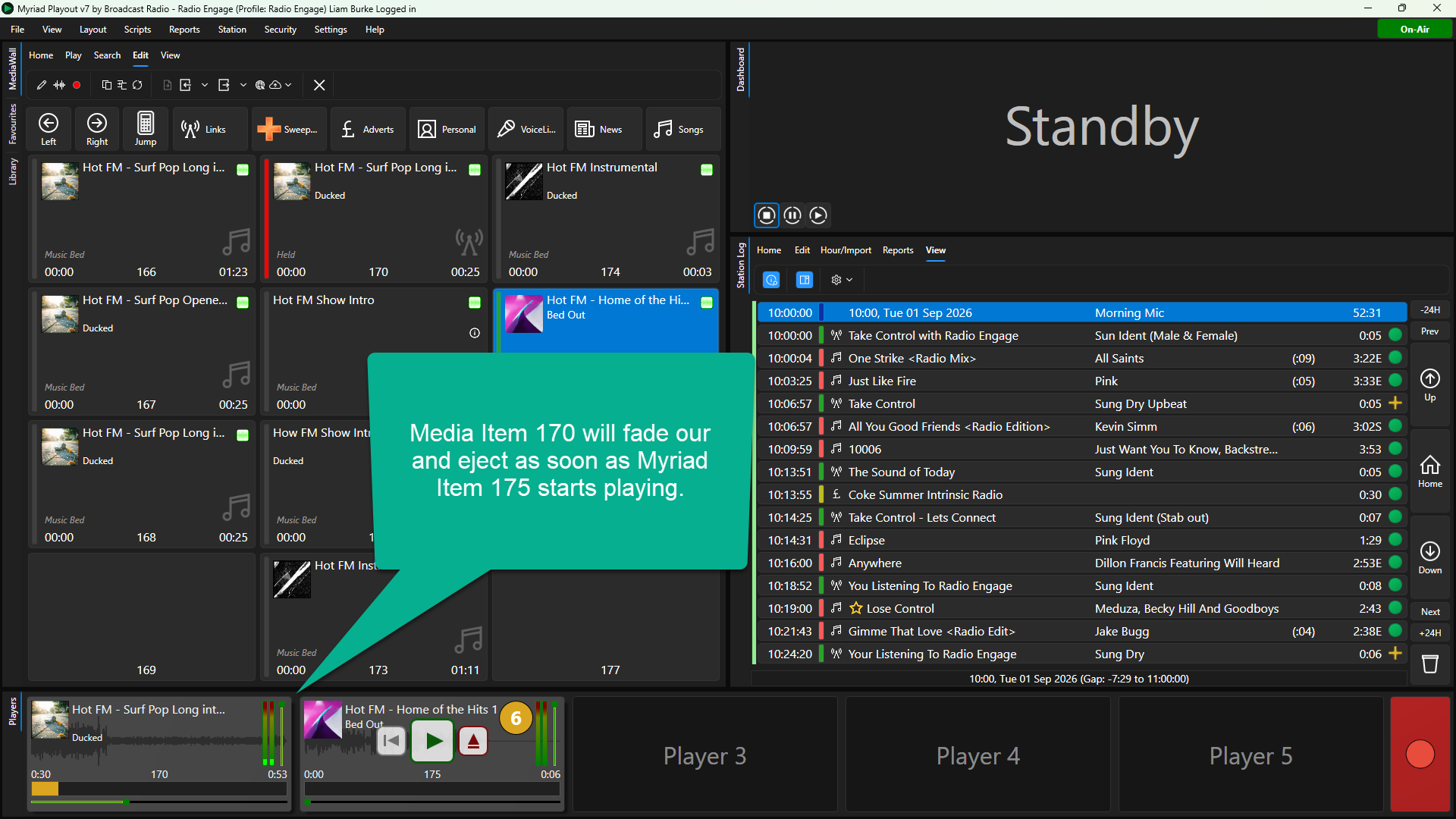
When the Out is played, Myriad can automatically fade and eject the matching bed from another Media Player.
A flexible system built around Categories and Attributes
Exclusive Play is not hard-wired specifically to music beds. It uses the Categories and Attributes already available within Myriad, making it flexible enough to support different station workflows and different kinds of production element.
For example, a station can create a Link Tag called “Music Bed”. That Tag is applied to the Intro/Bed Media Item, while the Out Media Item is configured to look for it using Exclusive Play. Whenever the Out is played, Myriad finds any Media Item carrying the "Music Bed" Tag and fades it out.
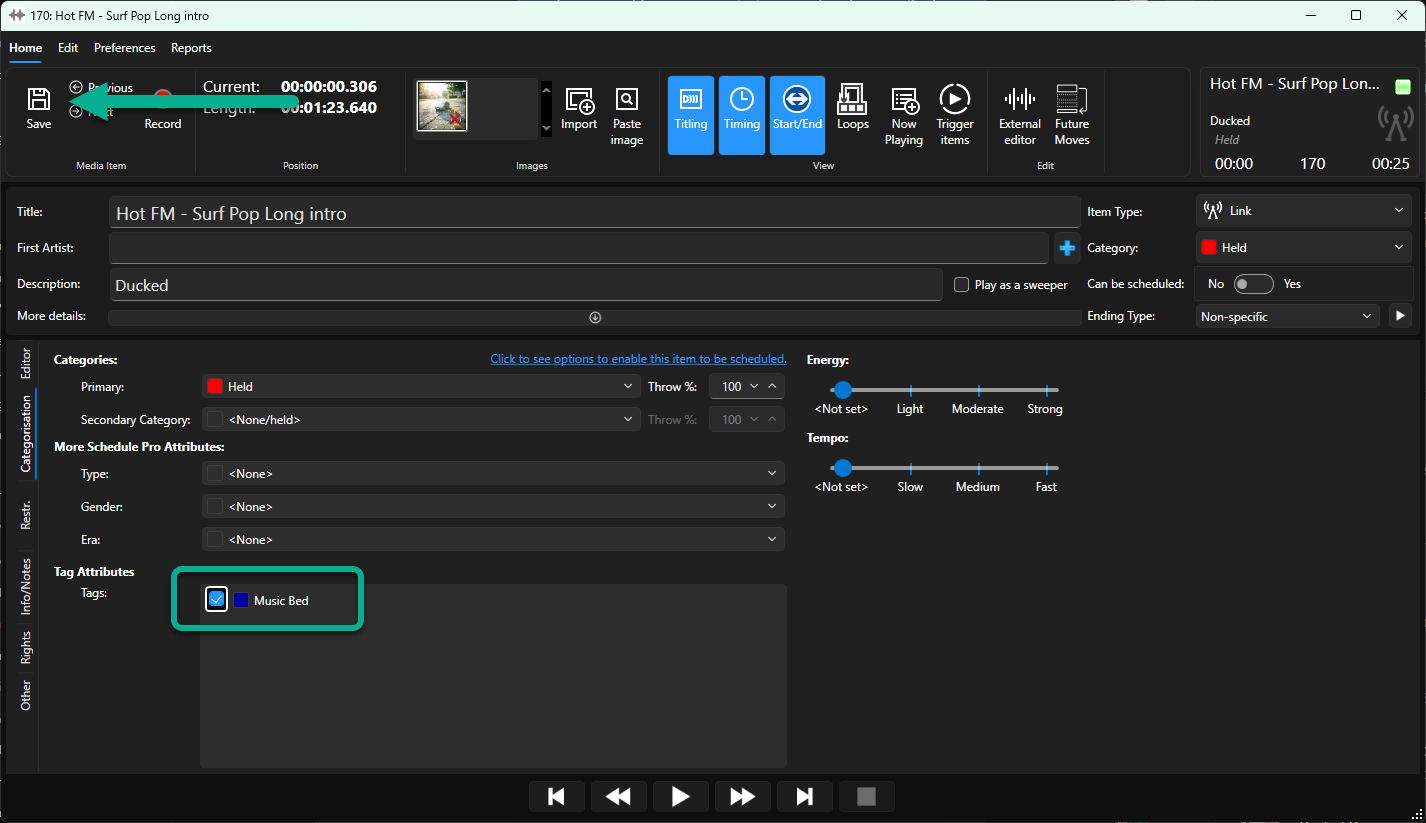
A dedicated Tag such as “Music Bed” identifies the Media Items that can be faded by the matching Out element
A Tag is particularly useful because a Media Item can have multiple Tags without affecting its Primary or Secondary Category. Stations can also use a Category, and Myriad Schedule Pro users can choose Types, Genders or Eras where those provide a better fit for the intended workflow.
For MultiStation systems, the Exclusive Play trigger can be selected independently for each Station. This allows the same Media Item to behave appropriately across services that may organise or use their content differently.
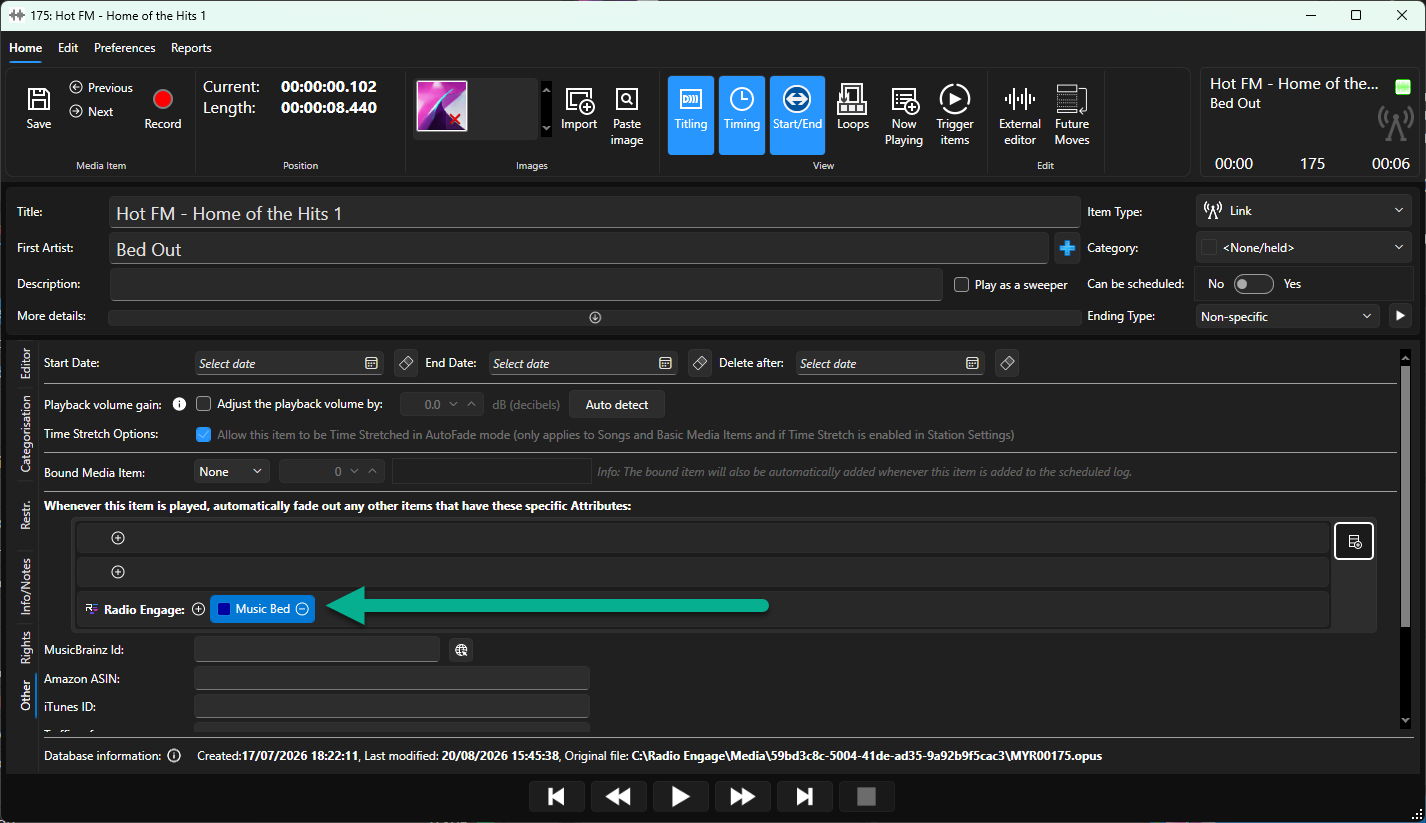
The Out Media Item is configured with the Category or Attribute it should look for when Exclusive Play is triggered.
Designed for the reality of a live studio
The value of Exclusive Play is not simply that it saves one button press. It removes a small but distracting technical task from a moment when the presenter should be concentrating on communication.
Presenters can let a link breathe, respond naturally to a co-host or guest, and finish when the content is complete rather than when a fixed-duration bed demands it. When they are ready, one action delivers the intended Out and tidies away the bed in the background.
That makes the process easier for experienced presenters and far less intimidating for volunteers, students or occasional contributors. It also helps stations achieve more consistent results because the intended fade happens automatically each time, regardless of who is operating the studio.
Give AI Voice Links a natural music bed
The same process can also be used within a Log sequence to place a perfectly timed music bed beneath an AI Voice Link. This helps the generated link sound like a natural part of the station’s output rather than an isolated voice announcement.
For this workflow, the Extro on the Intro/Bed Media Item is positioned at the end of the Intro Section, immediately before the ducked bed begins. When playback reaches that point, the Log moves on to the next item—the AI Voice Link—while the ducked bed continues playing in the background.
The Out Section Media Item is placed immediately after the AI Voice Link in the Log. It therefore starts naturally when the voice link finishes. Because the Out is configured to use Exclusive Play, starting it automatically fades and ejects the Intro/Bed Media Item that is still playing.
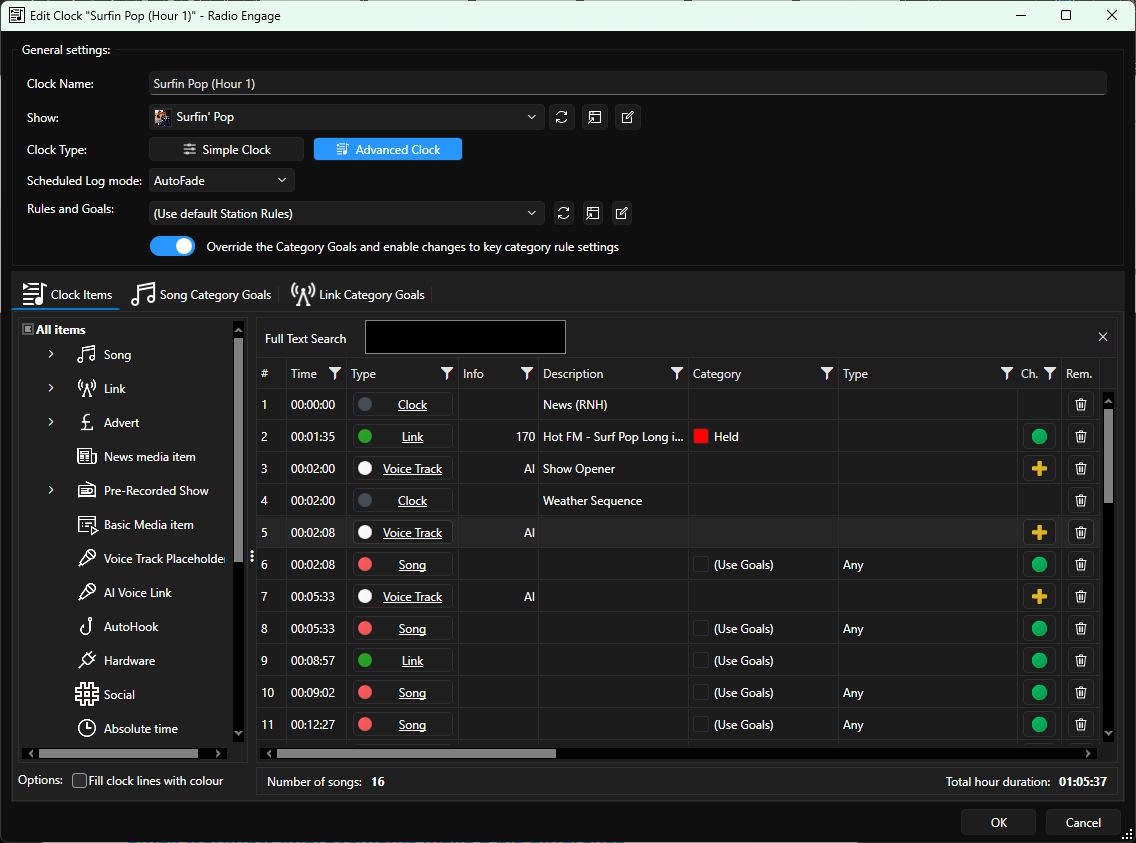
Complex AI Voice Link sequences including music beds can be built for automated shows.
The resulting sequence moves cleanly from the Intro into an AI-generated voice link over the music bed, followed by a perfectly timed Out. The length of the bed automatically follows the actual duration of the voice link, so stations retain the flexibility of generated content while giving it the polish and familiarity of a fully produced station element.
More than a tool for beds
Music beds are an obvious use for Exclusive Play, but the underlying feature has wider potential. Because the trigger can target selected Categories or Attributes, stations can use it wherever starting one Media Item should automatically clear another defined group of items from the Media Players.
That might include alternative versions of a production element, supporting audio used during a feature, or other station-specific workflows where two items should not continue playing together. The station decides what identifies the affected content and which Media Items should trigger the action.
Small workflow improvements make a big difference
Myriad Playout 7 includes major new areas such as Listener Requests, Song Voting and Presenter and Show Management, but it also introduces practical refinements to everyday studio operation. Exclusive Play is a good example: a focused feature that solves a familiar problem and makes the presenter’s job a little simpler every time it is used.
By combining flexible, variable-length beds with a reliable one-action ending, stations can retain the polish of produced audio without forcing every spoken link into a predetermined duration. The presenter stays focused on the audience, while Myriad handles the background operation.
For detailed instructions on creating the Tag and configuring the relevant Media Items, see the full “Mastering Beds With Exclusive Play” support guide.